
The Privileged Users List allows administrators to view and manage users who have special access or permissions within the system. This helps ensure proper control, monitoring, and management of high-level user activities. Here are the steps to view the privileged users list:
Step 1: Open the Privileged User Section
From the admin panel’s left-side menu, click on Privileged User to access the privileged user management page.
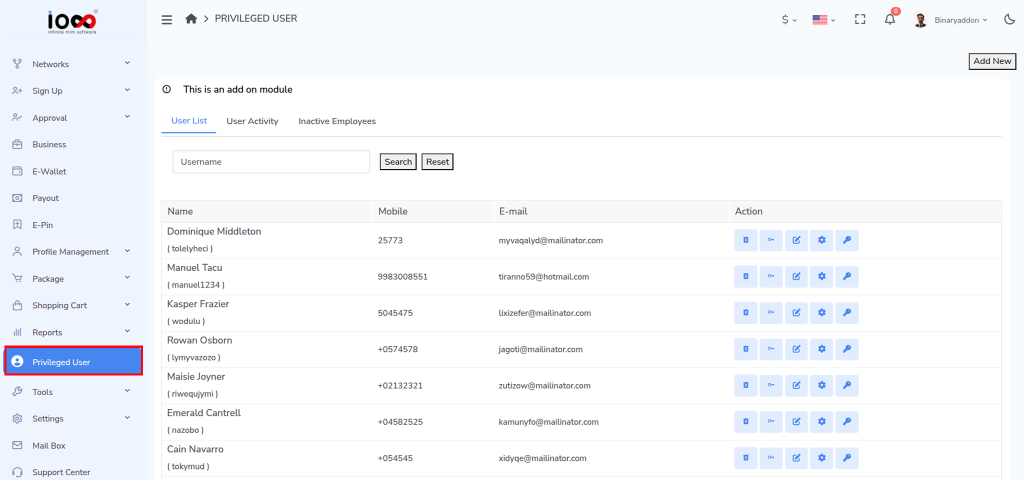
Step 2: Navigate to the User List Tab
Once the page opens, select the User List tab. This section displays all users who have been granted privileged access.
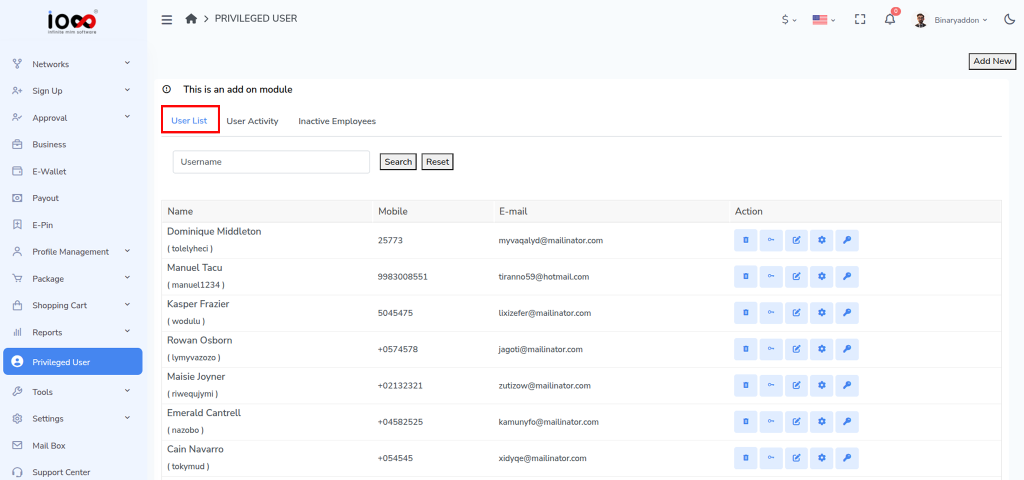
Step 3: Enter a Username (Optional)
To search for a specific privileged user, enter or select the username in the Username field. This step is optional and can be skipped if you want to view all users.
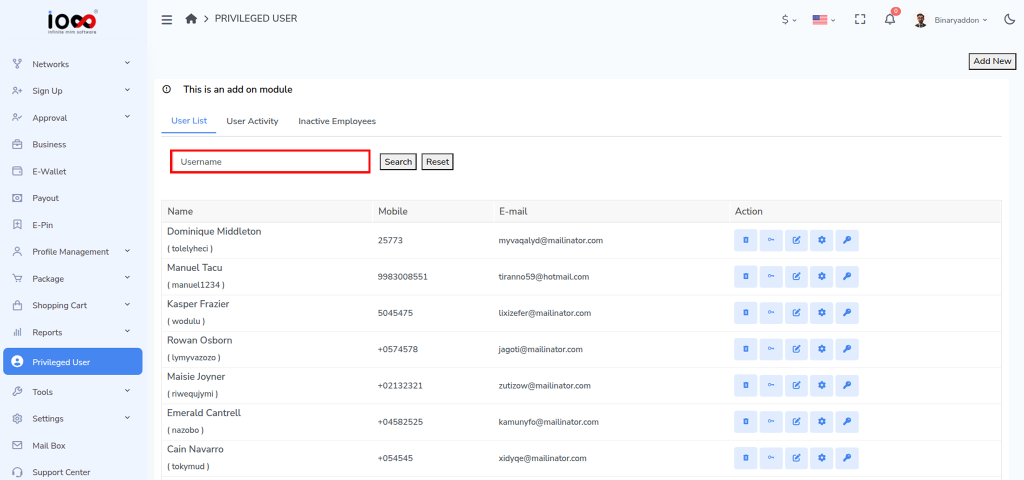
Step 4: Click the Search Button
Click the Search button to display the list of privileged users that match the selected search criteria. The system will display a list of privileged users along with their details and available management options.
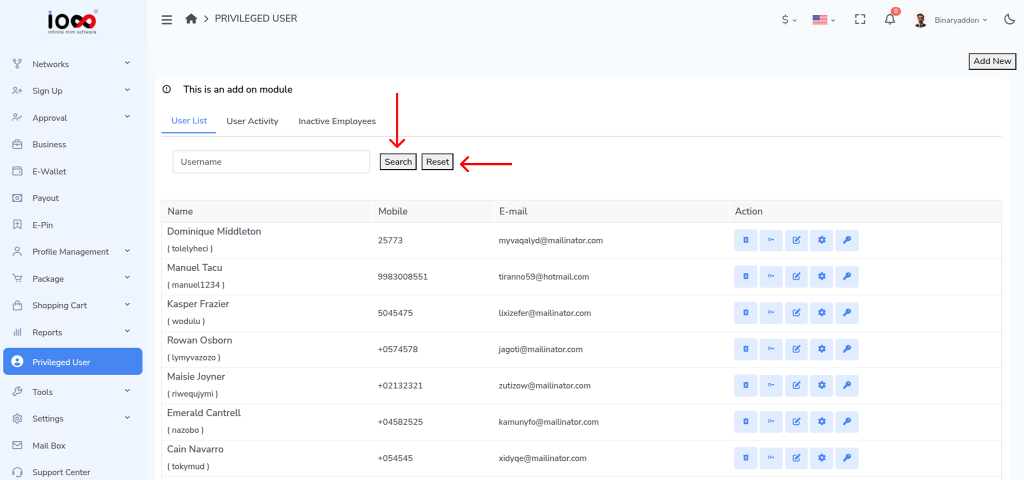
Step 5: Reset the Search Filter (Optional)
To clear the selected username filter and view the complete list of privileged users again, click the Reset button.
Information Displayed in the List
The Privileged Users List includes the following information:
- Name (with Username)
- Mobile Number
- Email Address
- Available Actions
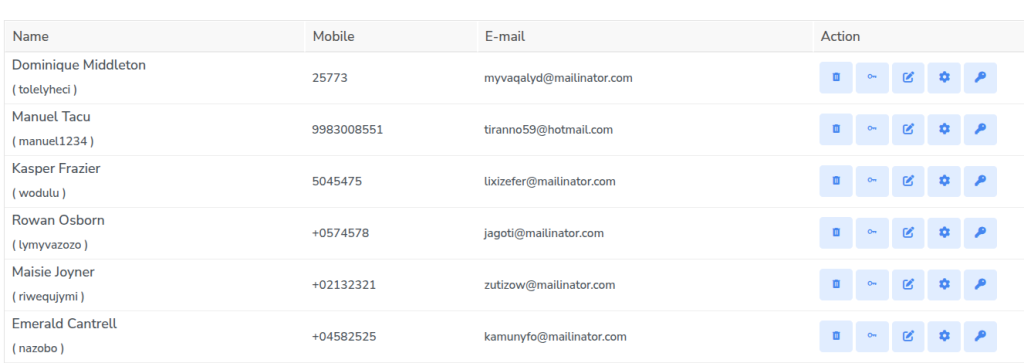
Available Actions
For each privileged user, administrators can perform the following actions:
- Disable Privileged User
Temporarily remove the user’s privileged access without deleting the account.
- Edit Menu Permissions
Modify the menus and modules that the privileged user can access.
- Edit User Details
Update user information such as name, contact details, and other profile information.
- Edit Dashboard Permissions
Configure which dashboard sections and widgets are visible to the privileged user.
- Change Password
Reset or update the user’s login password when required.