
Menu permissions determine which sections and features a privileged user can access within the system. Administrators can modify these permissions at any time to grant or restrict access based on user roles and responsibilities.
Step 1: Open the Privileged User Section
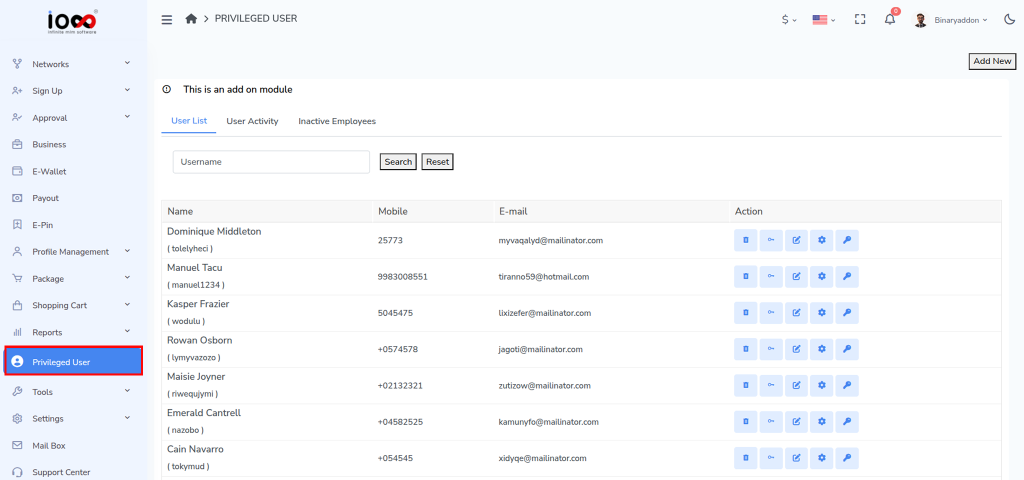
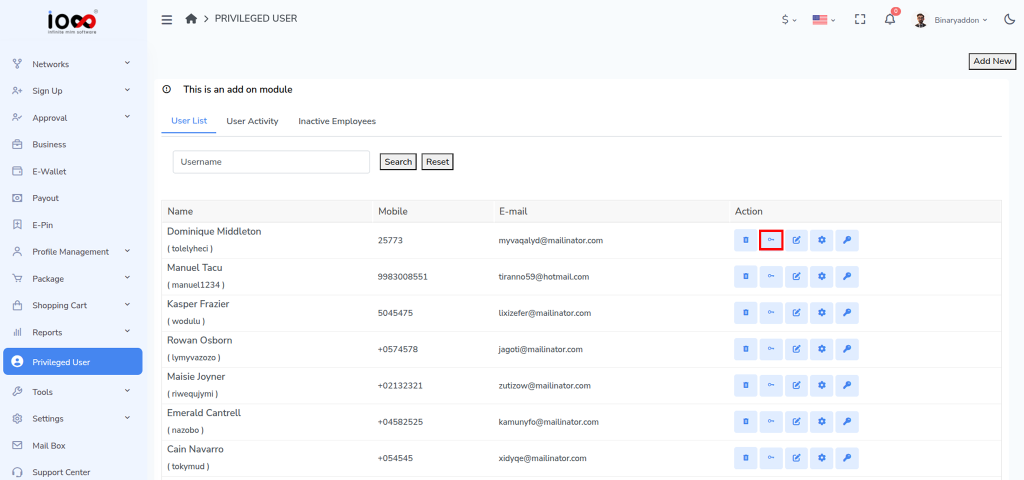
From the admin panel’s left-side menu, click on Privileged User to access the privileged user management page.
Step 2: Navigate to the User List Tab
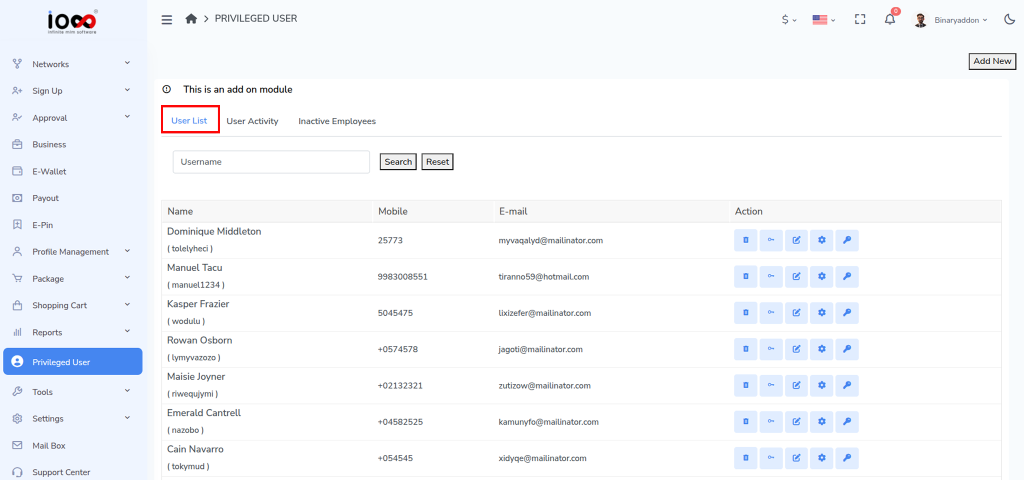
On the page that opens, select the User List tab. This section displays all privileged users in the system.
Step 3: Search for the User (Optional)
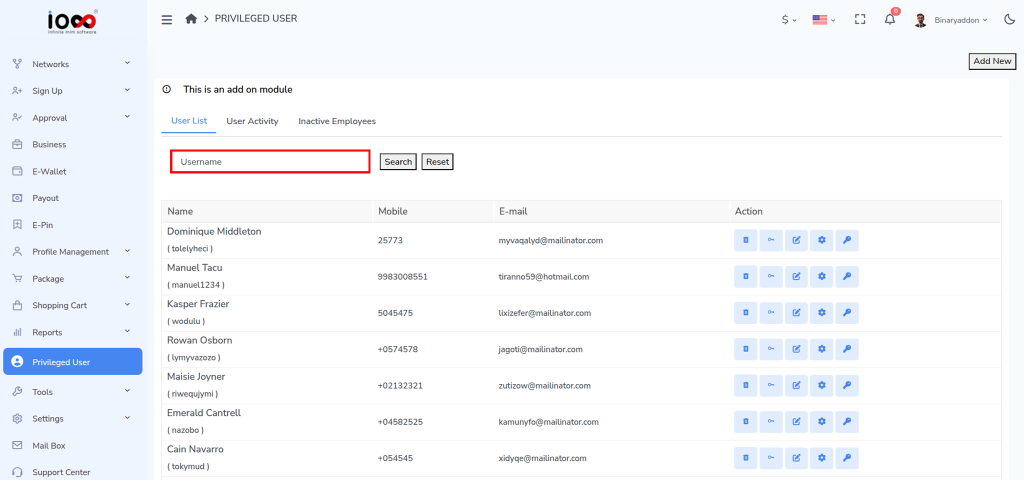
In the Username field, enter or select a specific username to filter the list and quickly locate the user whose permissions you want to modify.
Step 4: Locate the User
Review the list and find the privileged user whose menu permissions need to be updated.
Step 5: Click the Permission Icon
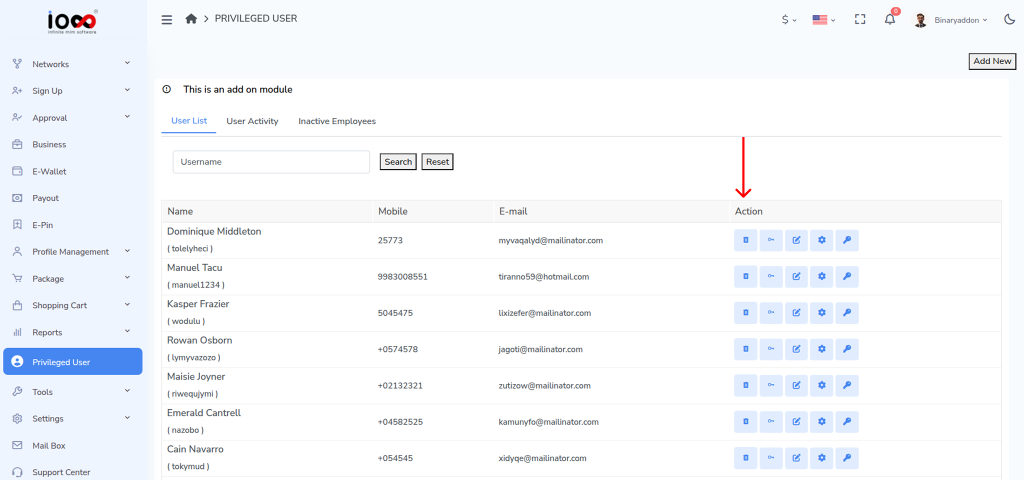
Under the Action column, click the Key icon corresponding to the selected user. This will open the Change Permission window.
Step 6: Modify Menu Permissions
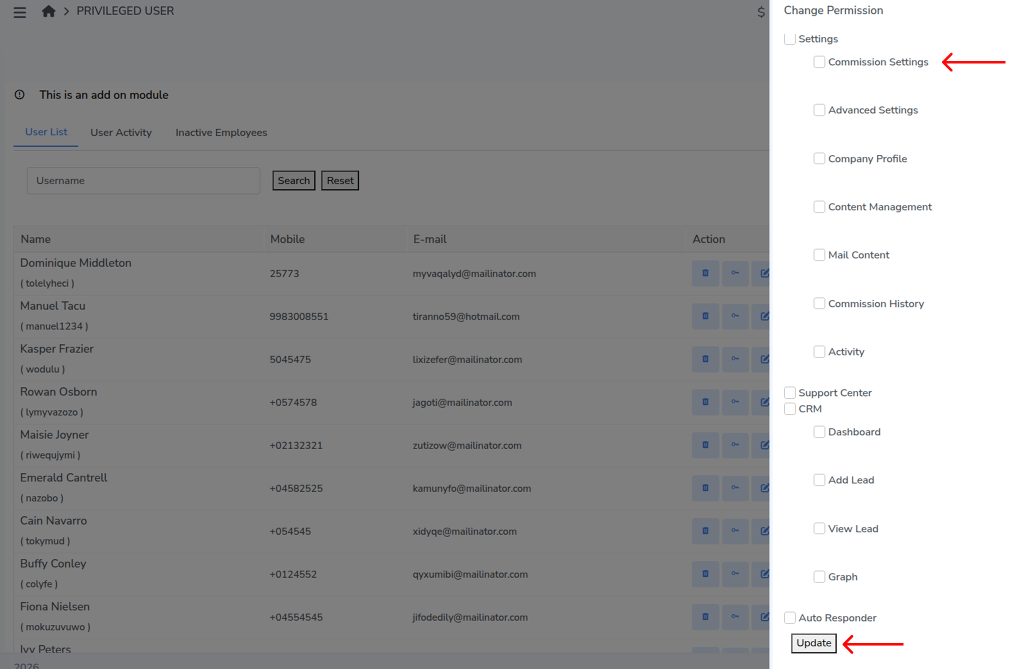
In the Change Permission pop-up, select or deselect the menu permissions according to the access level you want to assign to the user.
Step 7: Save the Changes
After updating the required permissions, click the Update button to save the changes.
Step 8: Verify the Updated Permissions
Once the update is successful, the user’s menu access will be modified according to the selected permissions.