
Infinite MLM Software Logo
  • Products
    Products
    Binary MLM Software Balanced growth through dual downlines
    Board MLM Software Enables member rotation and re-entry
    Matrix MLM Software Organized growth through limited team structure
    Monoline MLM Software Aligns members in one line for equal benefits
    Unilevel MLM Software Allows unlimited direct recruits
    Direct Selling Software Simplifies direct selling tasks and operations
    MLM Services
    MLM MigrationTransfer your data to a new MLM platform
    Third-Party IntegrationConnect with external tools and services
    Shopify IntegrationSyncs MLM software with your Shopify store
    Demo dashboard preview

    Enterprise Grade · AI-Powered

    Infinite MLM Software

    Advanced technology, intelligent automation and smart features — all in one platform.

    Try Free Demo
  • Demo
    Custom Demo
    Custom Demo preview

    Custom MLM Software demo provides a personalized experience tailored to your business needs.

    Try Now
    Preset Demo
    Preset Demo preview

    Preset demo offers a standardized view of the software with sample data pre-configured.

    Try Now
    1 Million Users
    MLM Demo with 1 Million Users
    • Manage 1 Million Users
    • Binary Matching Bonus
    • Ceiling / Capping Settings
    • Spillover Binary Settings
    Admin Demo User Demo
  • MLM Plans
    MLM Plans
    Binary MLM Plan Builds a two-legged downline structure
    Matrix MLM Plan Limits the width and depth of downlines
    Unilevel MLM Plan Allows unlimited direct recruits on the first level
    Board MLM Plan Members advance through a matrix
    Monoline MLM Plan Distributors are placed in one straight downline
    Party Plan MLM Focuses on sales via social events
    Generation MLM Plan Commissions through multiple levels
    Hybrid MLM Plan Direct referrals are placed in either leg by the upline
    Stair Step Plan Features a rank-based breakaway system
    View All Plans →
    MLM Plans overview

    Compare & Choose

    Recruit, Reward, Retain: The Best MLM Plans for Success

    Compare compensation structures and pick the perfect plan for your business.

    View Plans
  • Pricing
  • Resources
    Company
    About UsOur mission, values and history
    TestimonialsCustomer reviews and feedback
    Use CaseReal-world examples of product use
    FAQCommon questions with answers
    Explore
    BlogRegular articles and updates
    Video TutorialsVisual guides for easy learning
    DocumentationUser guides and instructions
    Version HistoryLog of software updates
    FeaturesMain tools and functionalities
    Client Success StoriesCustomer wins using our solution
    MLM Add-OnsAdvanced add-ons for extended functionality
    MLM CalculatorEasy plan-based commission calculations
    Contact our experts

    We're Here to Help

    Get in Touch With Our Experts

    From product demos to custom solutions, we're here to support your success.

    Contact Us
Live Demo Get Started Free
Get Started Now
MLM HELP

How To Disable a Privileged User?

/ Privileged User / How To Disable a Privileged User?
  • June 02, 2026
  • infinite_help
  • Privileged User

Disabling a privileged user allows administrators to restrict access for users with elevated permissions. This helps maintain system security and ensures that only authorized users can access privileged functions.

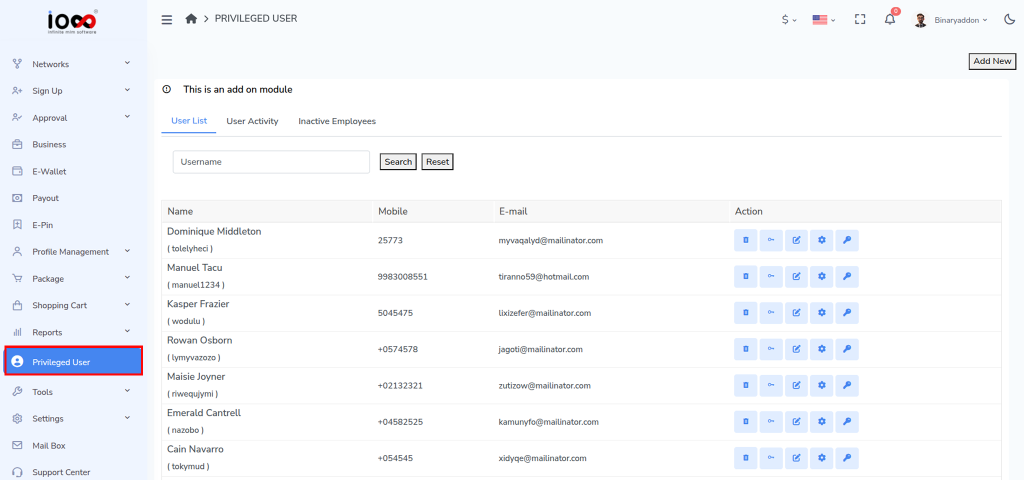
Step 1: Open the Privileged User Section

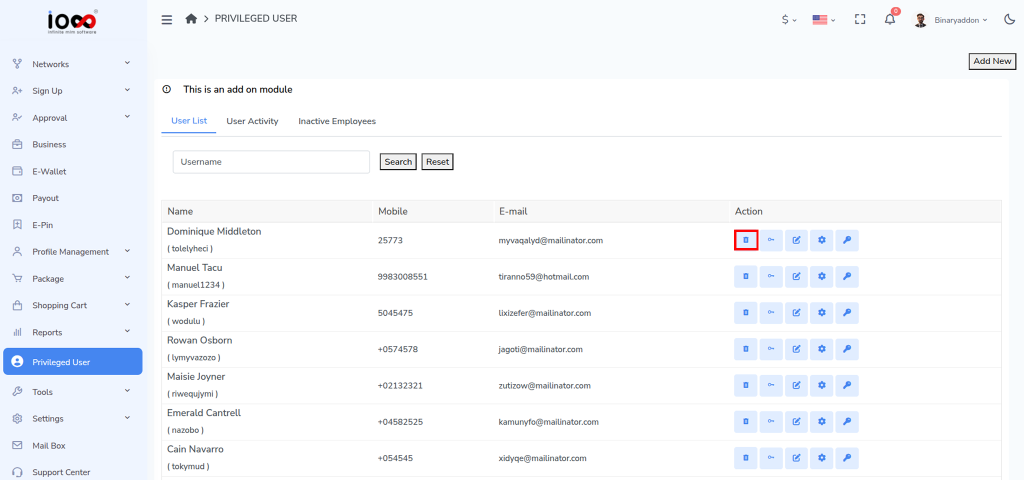
From the admin panel’s left-side menu, click on Privileged User to access the privileged user management page.
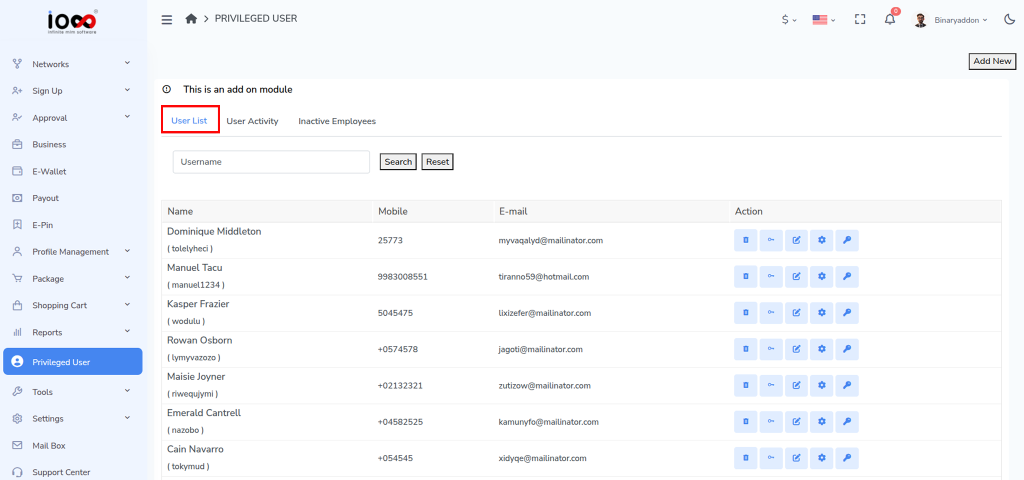
Step 2: Navigate to the User List Tab

On the page that opens, select the User List tab. This section displays all privileged users currently available in the system.
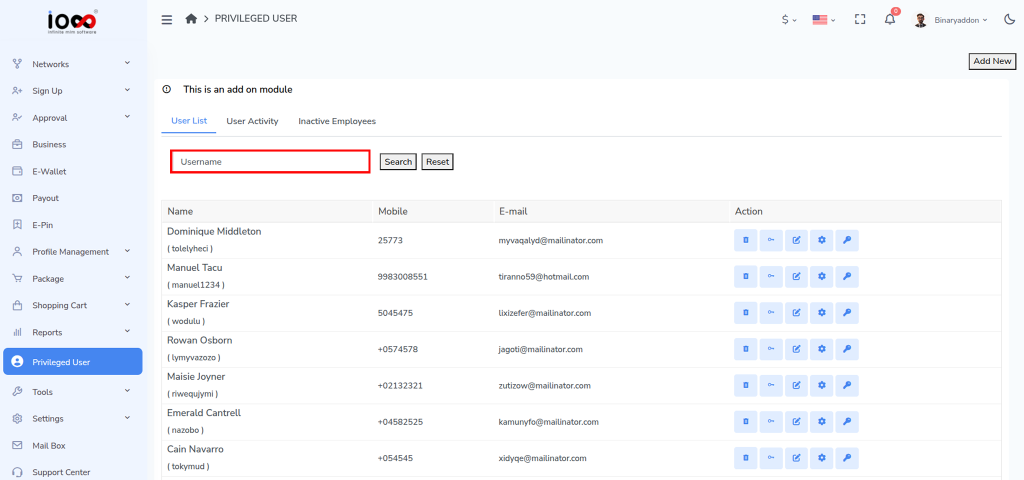
Step 3: Search for the User (Optional)

In the Username field, enter or select a specific username to filter the list and quickly locate the desired user. This step is optional. 
Step 4: Locate the User

Review the displayed list and find the privileged user you want to disable.
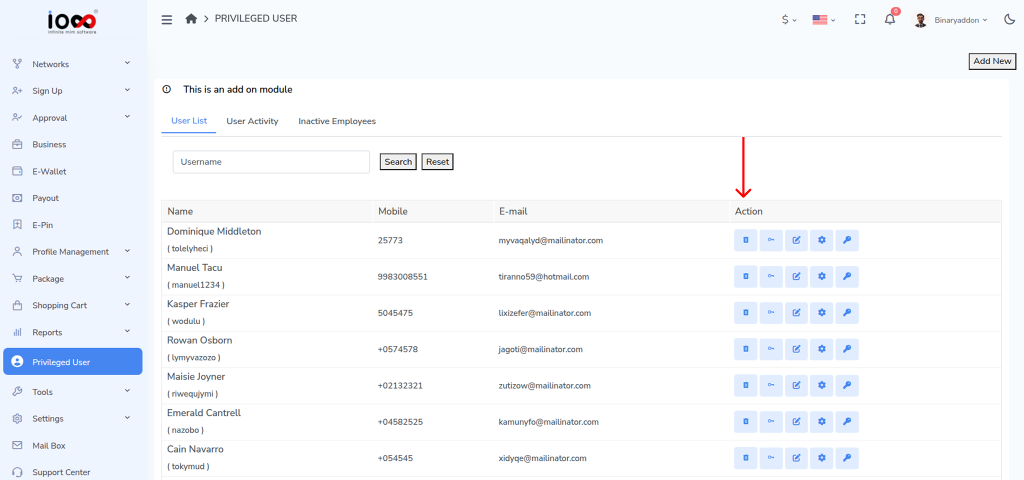
Step 5: Click the Disable Icon

Under the Action column, click the Disable icon corresponding to the selected user.
Step 6: Confirm the Action

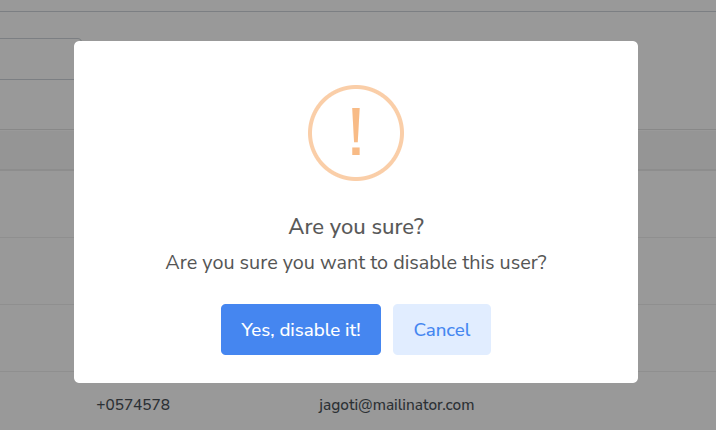
A confirmation pop-up window will appear. Click Yes to proceed with disabling the user.
Step 7: Verify the User Status

Once confirmed, the privileged user will be disabled and will no longer have access to privileged functions until the account is re-enabled.

Related Articles

  • How to Change a Privileged User Password?

  • How to Configure a Privileged User’s Dashboard?

  • How to Edit Privileged User Details?

  • How to Change Privileged Permissions?

  • How to Add a New Privileged User?

MLM Software Dashboard

Try Free MLM Demo

Try Now

© Copyright 2026 by Infinite Open Source Solutions LLP All Rights Reserved.

This website uses browser cookies to enhance your user experience and boost loading speeds but we never store any of your private data. By continuing you accept our privacy policy.

Cookie Policy