
Administrators can reset or change the password of a privileged user whenever necessary. This helps maintain account security and ensures that users can regain access if they forget their passwords.
Step 1: Open the Privileged User Section
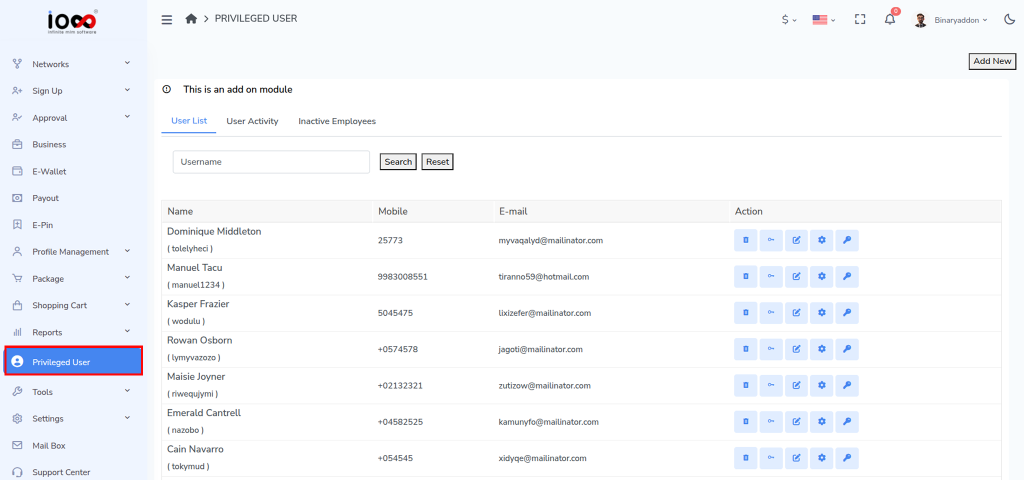
From the admin panel’s left-side menu, click on Privileged User to access the privileged user management page.
Step 2: Navigate to the User List Tab
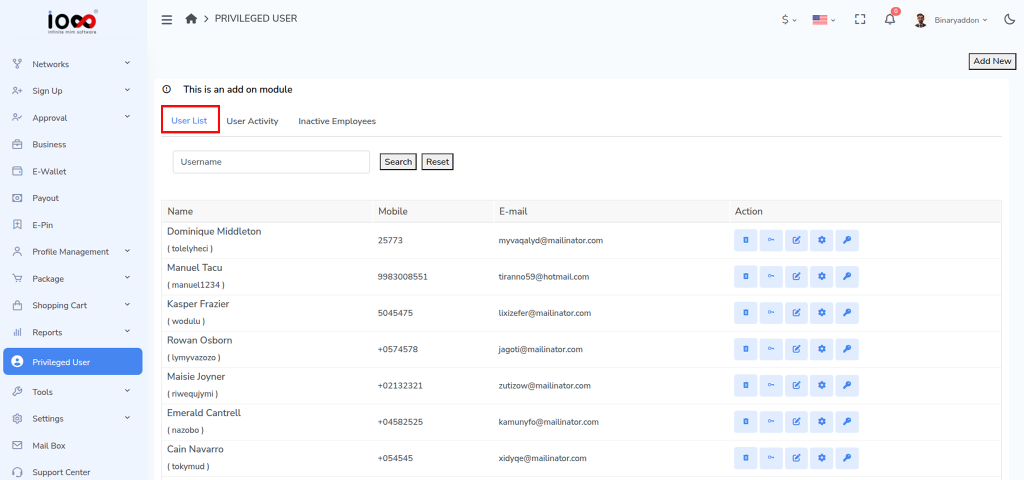
On the page that opens, select the User List tab. This section displays all privileged users available in the system.
Step 3: Search for the User (Optional)
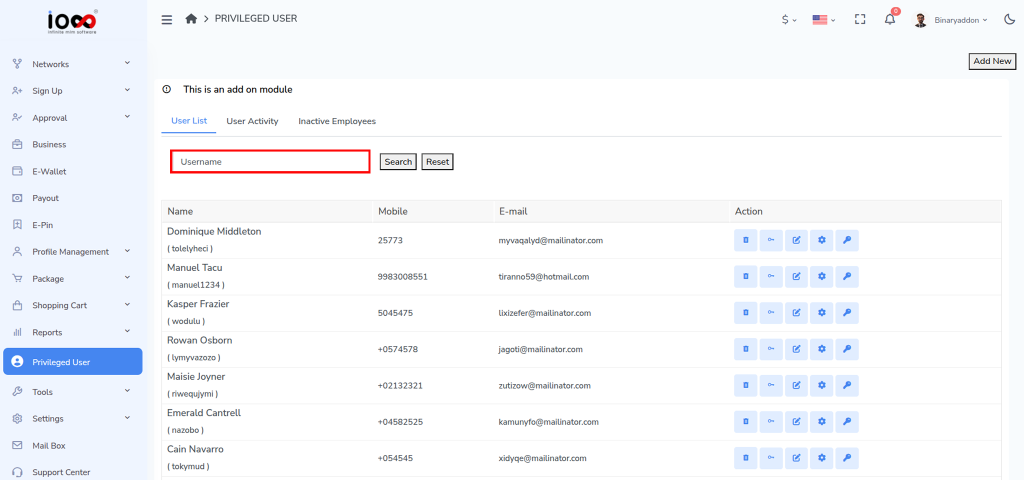
In the Username field, enter or select a specific username to filter the list and quickly locate the user whose password you want to change.
Step 4: Locate the User
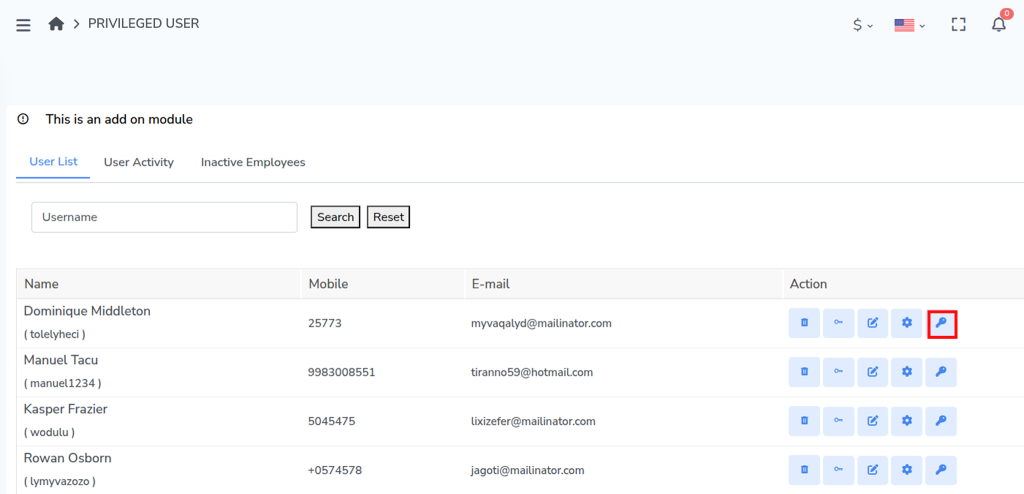
Review the list and find the privileged user whose password needs to be updated.
Step 5: Click the Password Icon
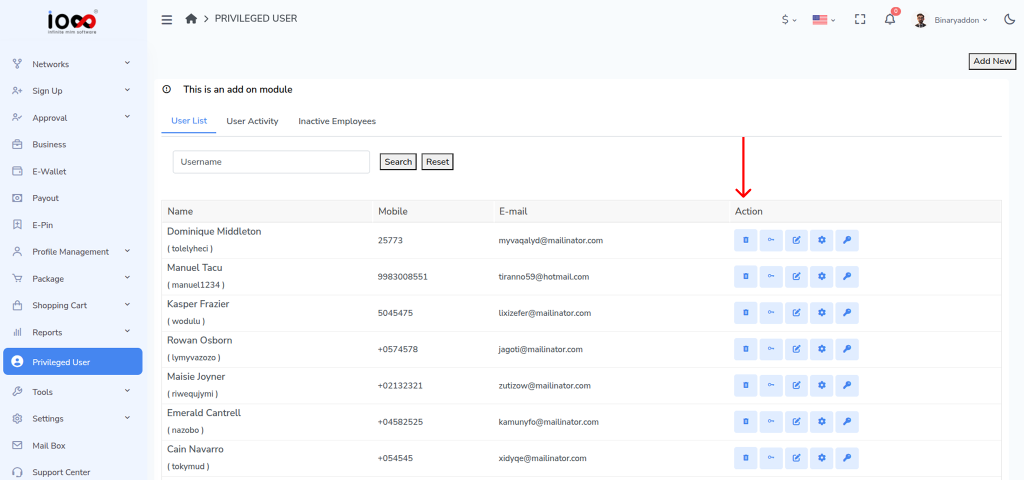
Under the Action column, click the Passkey icon corresponding to the selected user. This will open the password update window.
Step 6: Enter the New Password
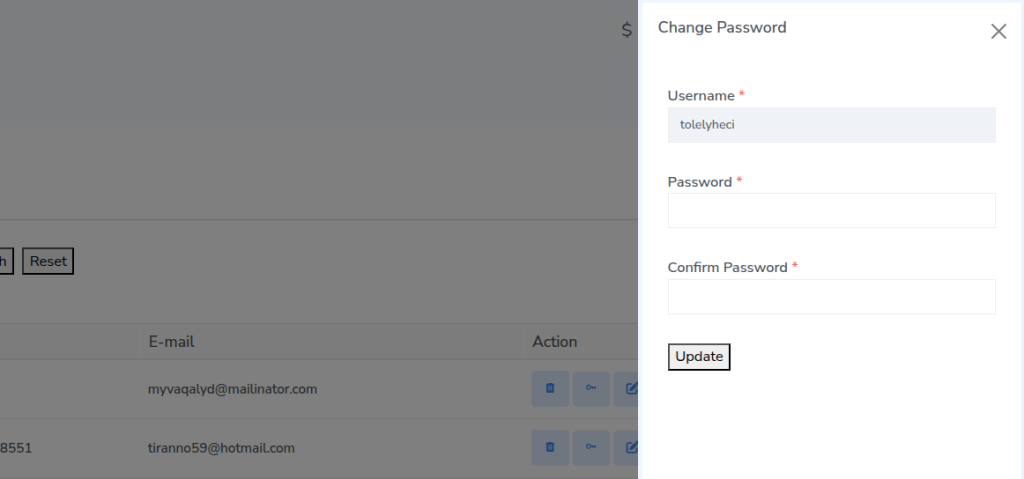
In the pop-up window, enter the new password in the designated field. Re-enter the new password in the Confirm Password field to ensure accuracy. Click the Update button to save the new password.
Step 7: Verify the Password Update
Once the update is successful, the privileged user will be able to log in using the newly assigned password.