Dashboard configuration allows administrators to customize which sections and widgets are visible to a privileged user. This helps provide users with access to only the information relevant to their roles and responsibilities.
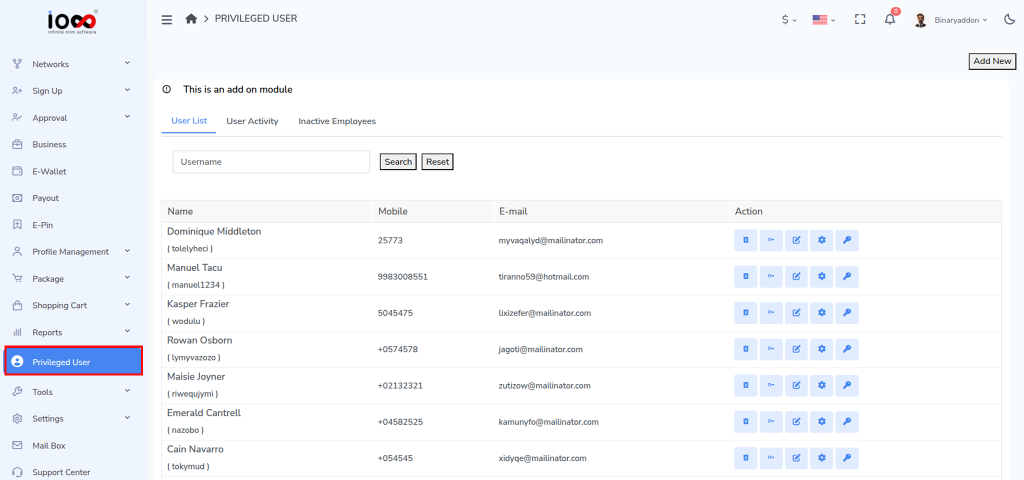
Step 1: Open the Privileged User Section
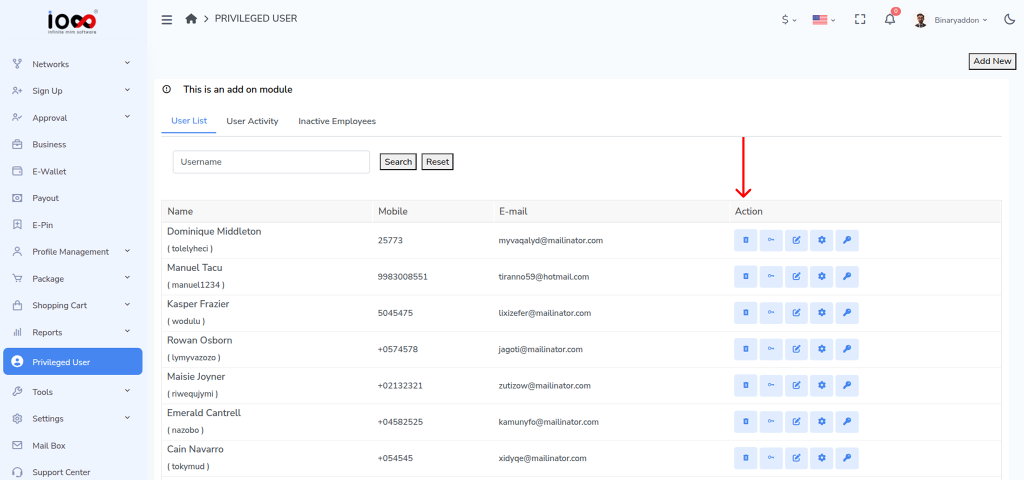
From the admin panel’s left-side menu, click on Privileged User to access the privileged user management page.
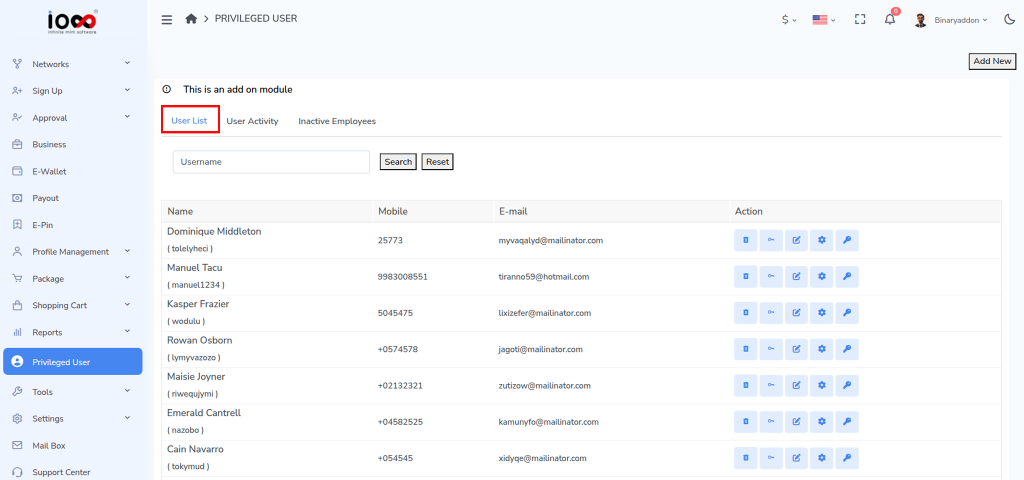
Step 2: Navigate to the User List Tab
On the page that opens, select the User List tab. This section displays all privileged users available in the system.
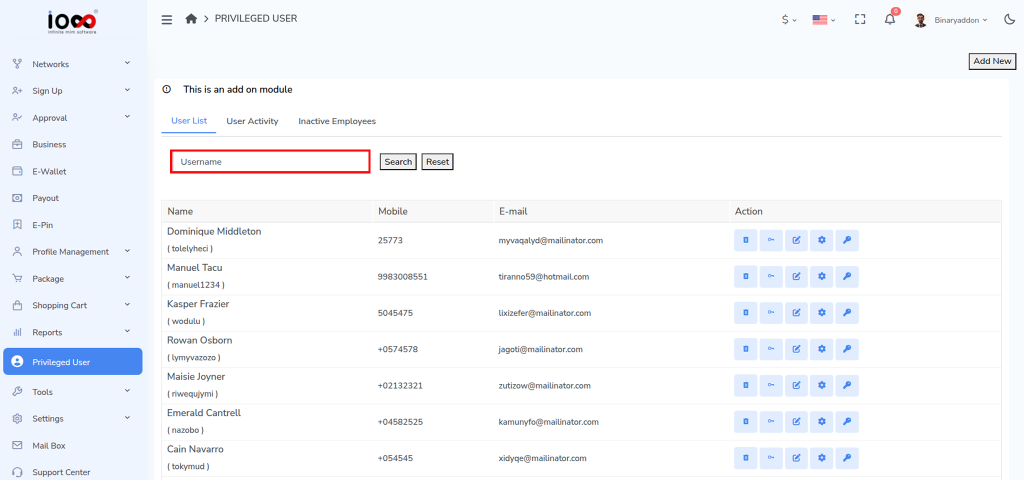
Step 3: Search for the User (Optional)
In the Username field, enter or select a specific username to filter the list and quickly locate the user whose dashboard configuration you want to modify.
Step 4: Locate the User
Review the list and find the privileged user whose dashboard settings need to be updated.
Step 5: Click the Settings Icon
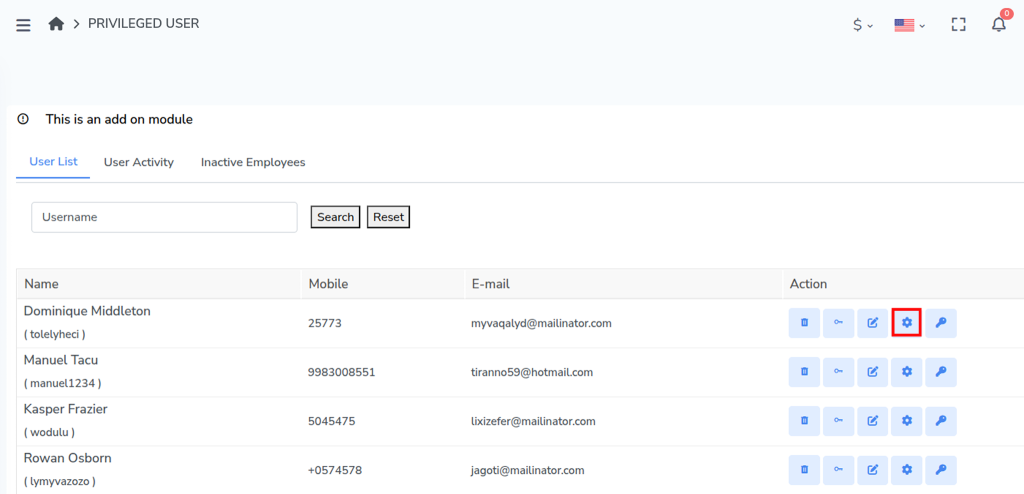
Under the Action column, click the Settings icon corresponding to the selected user. This will open the dashboard configuration window.
Step 6: Configure Dashboard Sections
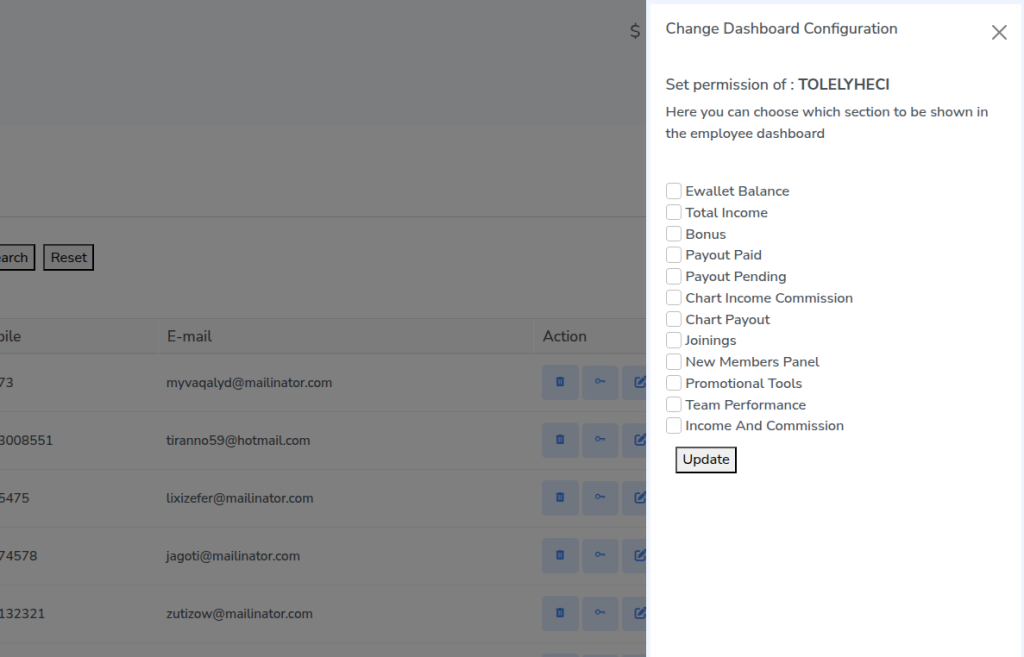
In the configuration window, select the dashboard sections you want to display for the user by checking the corresponding boxes. You can also deselect sections that should not be visible.
Step 7: Save the Configuration
After selecting the required dashboard sections, click the Update button to save the changes.
Step 8: Verify the Updated Dashboard
Once the update is successful, the privileged user’s dashboard will reflect the newly configured sections and widgets.