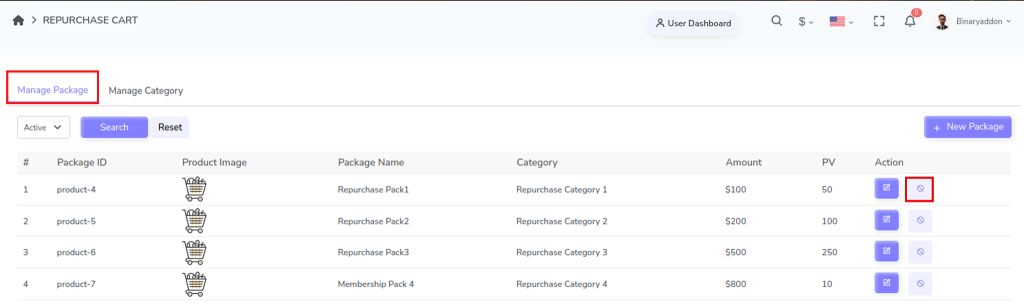
Deactivating a repurchase package is useful when a product is no longer available, temporarily paused, or needs to be removed from active sales without deleting it completely. This helps maintain historical data while ensuring users no longer see or purchase that package.
Step 1: Access the Package Section
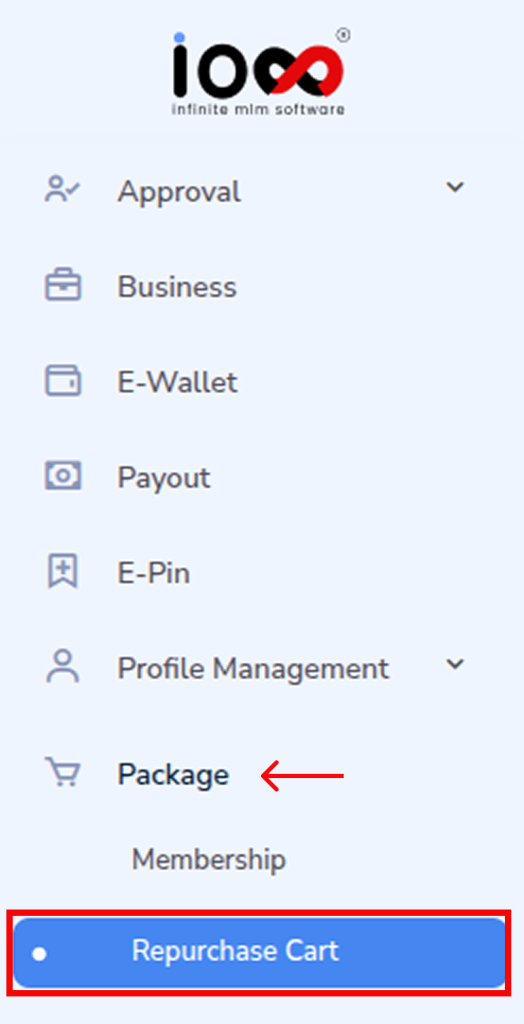
From the main menu bar, navigate to the “Package” section. This is where all product and cart-related configurations are managed.
Step 2: Open Repurchase Cart
In the dropdown menu, click on “Repurchase Cart.” This will take you to the dedicated interface where repurchase settings and categories are handled.
Step 3: Go to Manage Package
Within the Repurchase Cart section, select Manage Package. Here, you will find the complete list of existing repurchase packages.
Step 4: Select the Package to Deactivate
In the package list, look under the Action column. Click on the Deactivate icon corresponding to the package you want to deactivate and it will be deactivated in the next second.