The Add Repurchase Package feature allows administrators to create products or packages that users can purchase repeatedly through the repurchase system. While creating a repurchase package, you can configure the package name, category, amount, PV value, description, and product image. These packages can later be displayed in the repurchase cart for user purchases.
Steps to Add a New Repurchase Package
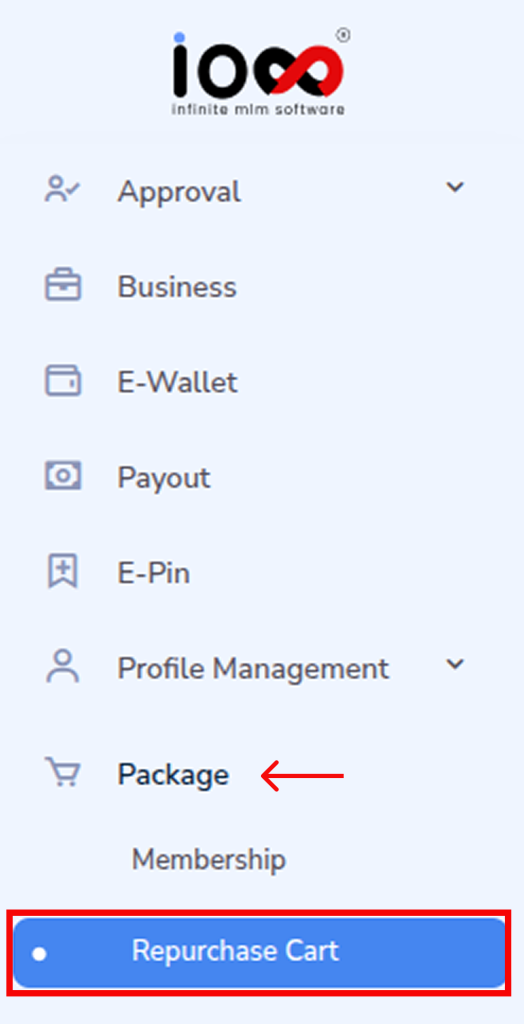
Step 1: From the left navigation menu, click Package and select Repurchase Cart from the dropdown list.
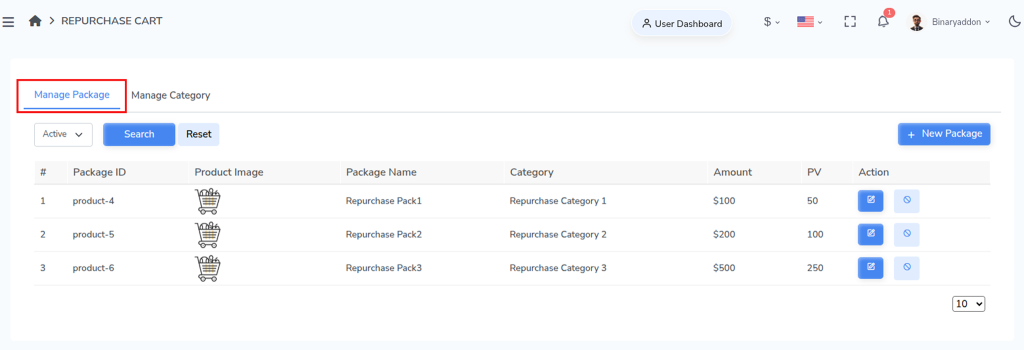
Step 2: Under the Repurchase Cart section, click Manage Package.
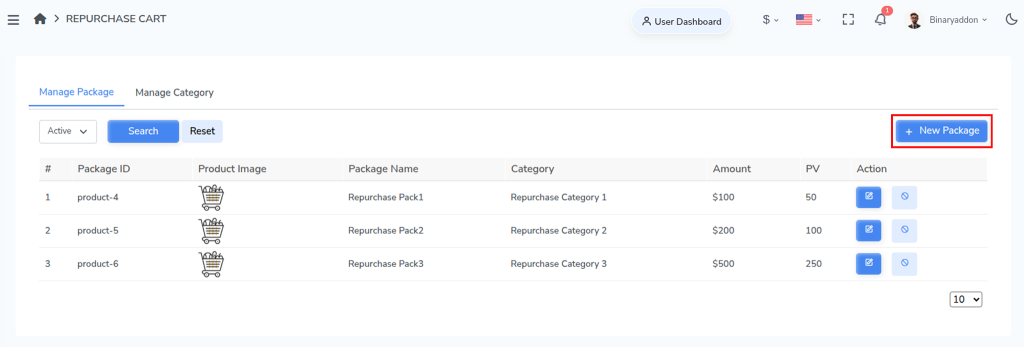
Step 3: On the Manage Package page, click the New Package button.
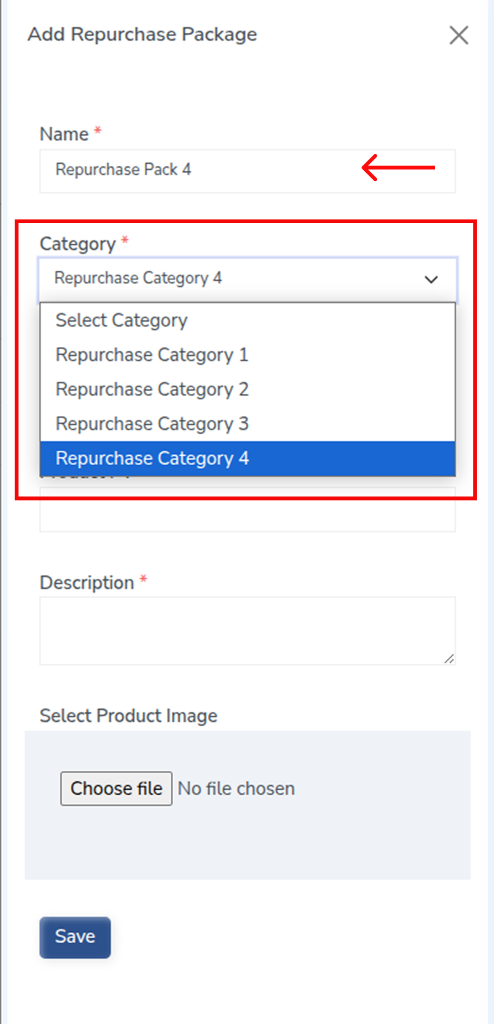
Step 4: The package creation form will appear. Enter the required package details.
- Package Name – Enter the name of the repurchase package.
- Repurchase Category – Select the appropriate category for the package.
If a required category is not available, you can create a new repurchase category one from the Manage Category section.
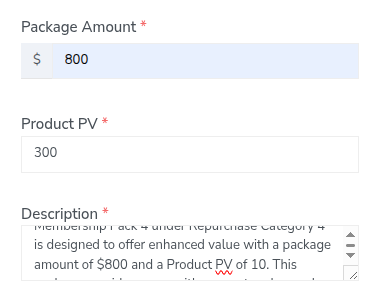
Step 5: Enter the package pricing and PV details.
- Package Amount – Specify the price of the repurchase package.
- Product PV – Enter the Product Point Value associated with the package.
This PV may be used for commission and bonus calculations within the MLM system.
Step 6: Add a package description.
- Description – Provide details about the package, including product information, benefits, or usage details.
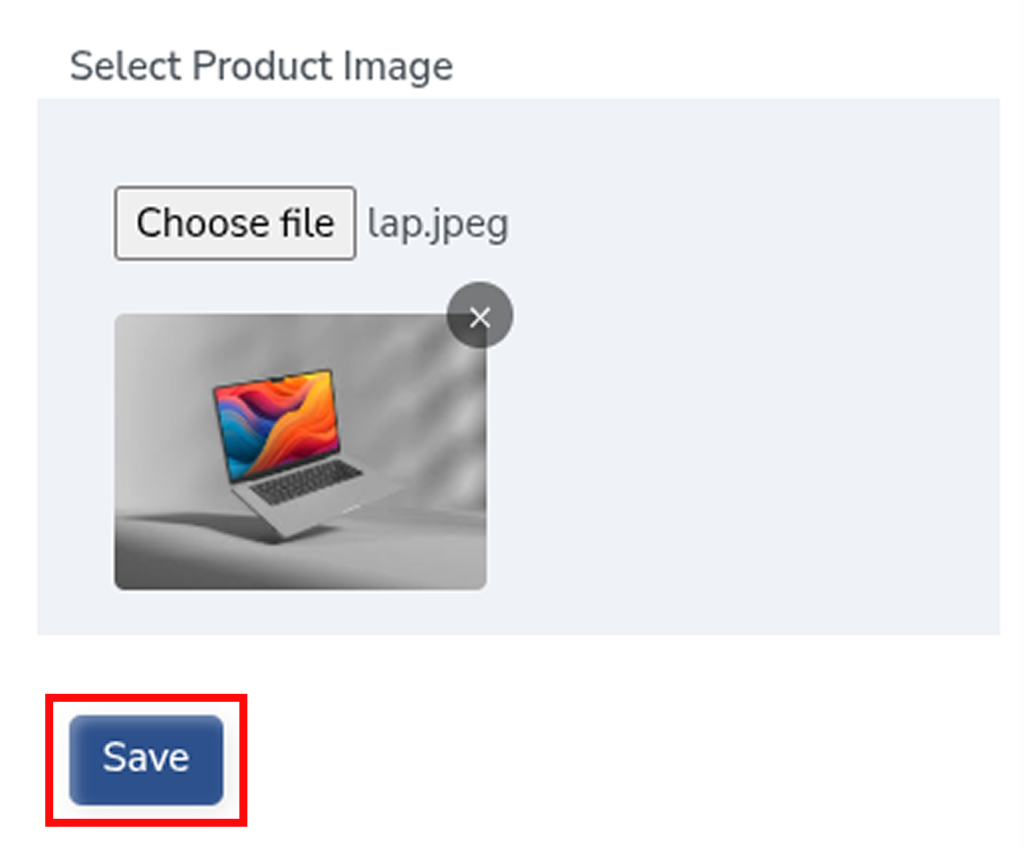
Step 7: Upload the product image.
- Product Image – Select and upload an image representing the repurchase package.
This image will be displayed in the repurchase cart and user interface.
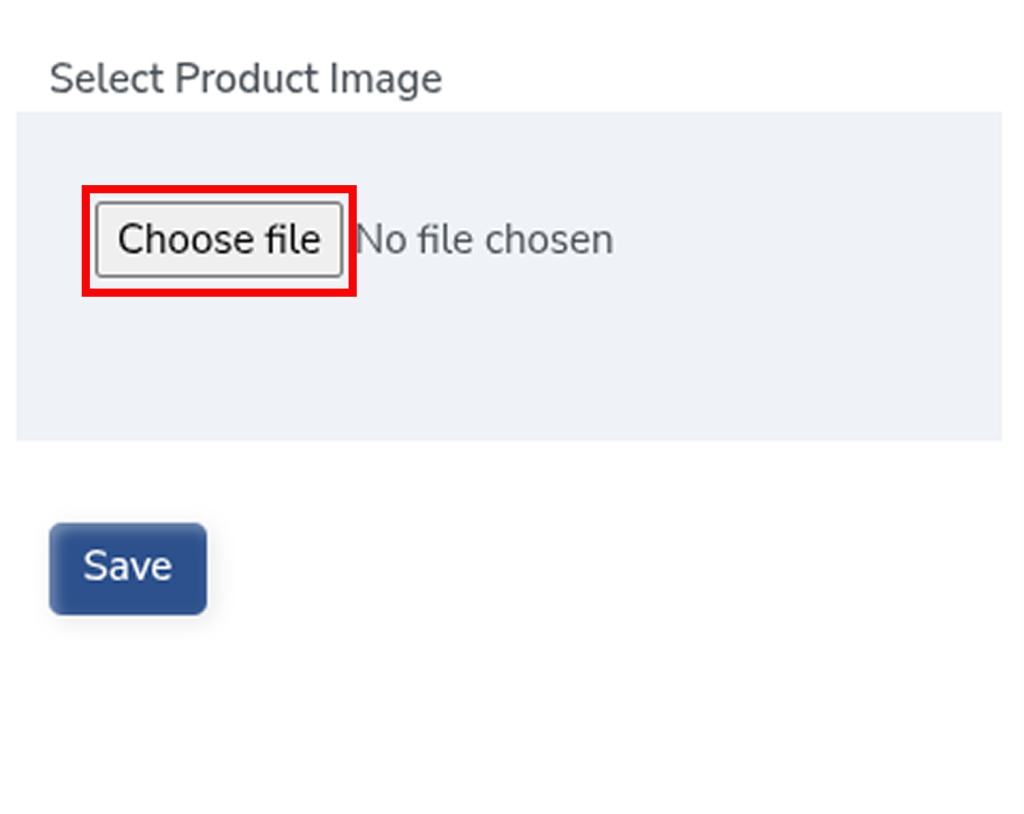
Step 8: After entering all the required information, click the Save button to create the repurchase package successfully.