
The Edit Membership Package section allows administrators to modify existing membership plans by updating the package value, commission configurations, validity period, ROI settings, and other details. Follow the steps below to edit a membership package.
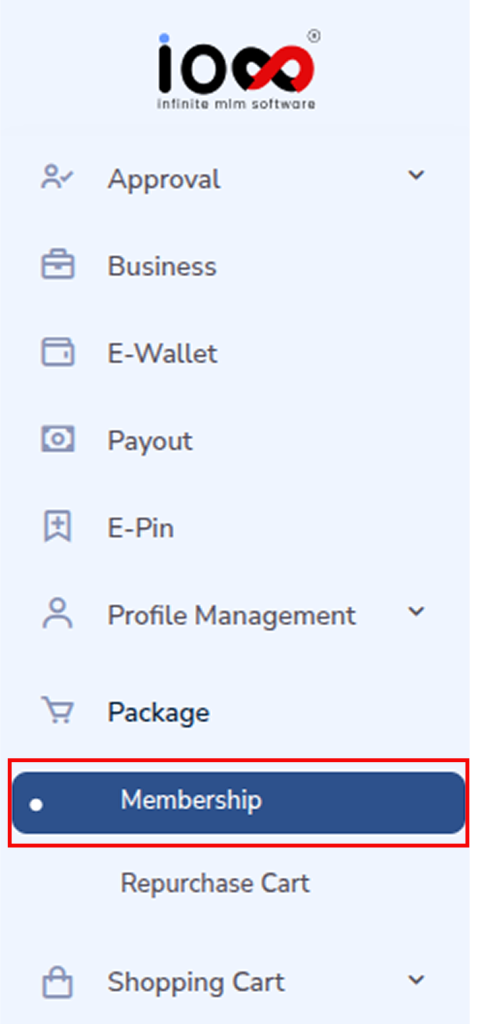
Step 1: Go to the Package Section
Navigate to the Package section in the admin panel and select Membership.
Step 2: Open the Edit Membership Package Window
Locate the membership package you want to modify and click the Edit icon under the Action column associated with that package.
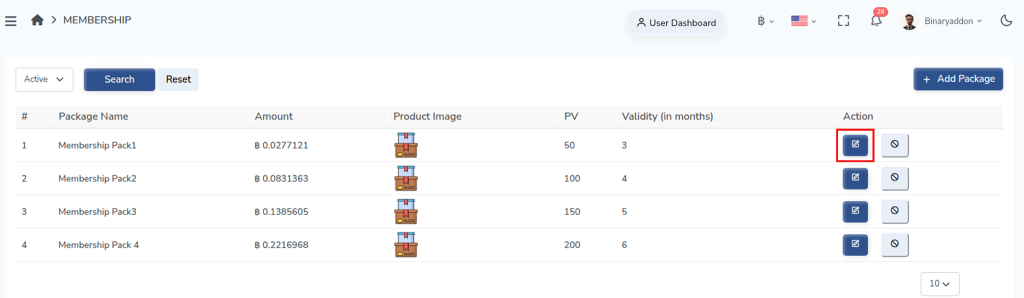
The Edit Membership Pack configuration window will then appear.
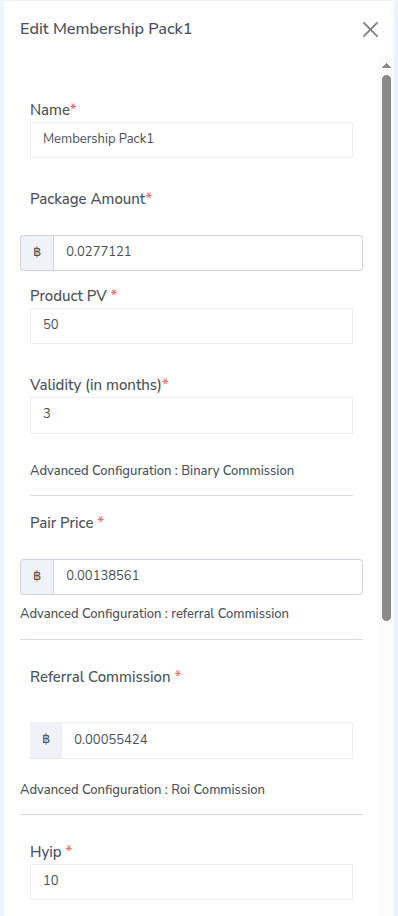
Step 3: Update Package Details
In the configuration window, update the required package information.
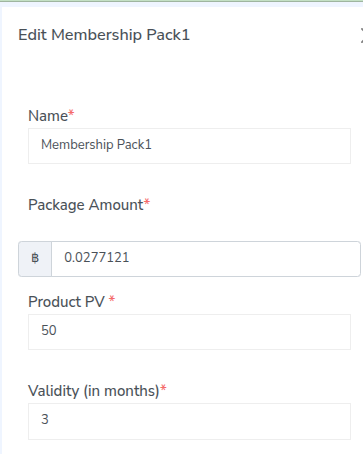
- Name – Modify the membership package name if needed.
- Package Amount – Enter the updated package price.
- Product PV – Set or modify the Product Point Value associated with the package.
- Validity (in months) – Define how long the membership will remain active.
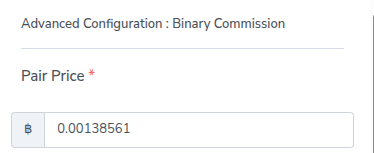
Step 4: Configure Binary Commission
Under Advanced Configuration: Binary Commission, update the pairing value.
- Pair Price – Enter the commission amount paid for each binary pair.
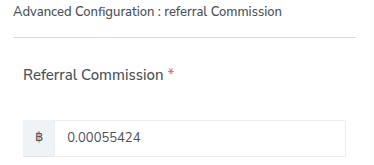
Step 5: Configure Referral Commission
In Advanced Configuration: Referral Commission, update the referral reward.
- Referral Commission – Specify the commission amount given when a member directly refers to another user.
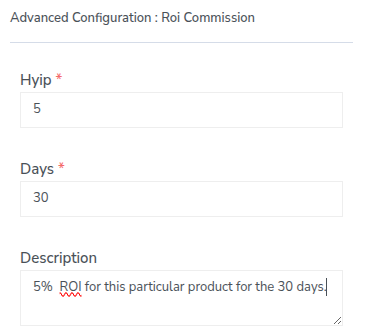
Step 6: Configure ROI Commission
Under Advanced Configuration: ROI Commission, set the ROI parameters.
- Hyip – Enter the ROI percentage or value for the package.
- Days – Specify the number of days for which the ROI will be distributed.
- Description – Enter or edit the package description. You can also update additional details for the membership package.
Step 7: Add Product Image
- Select Product Image – Click Choose file to upload or replace the package image.
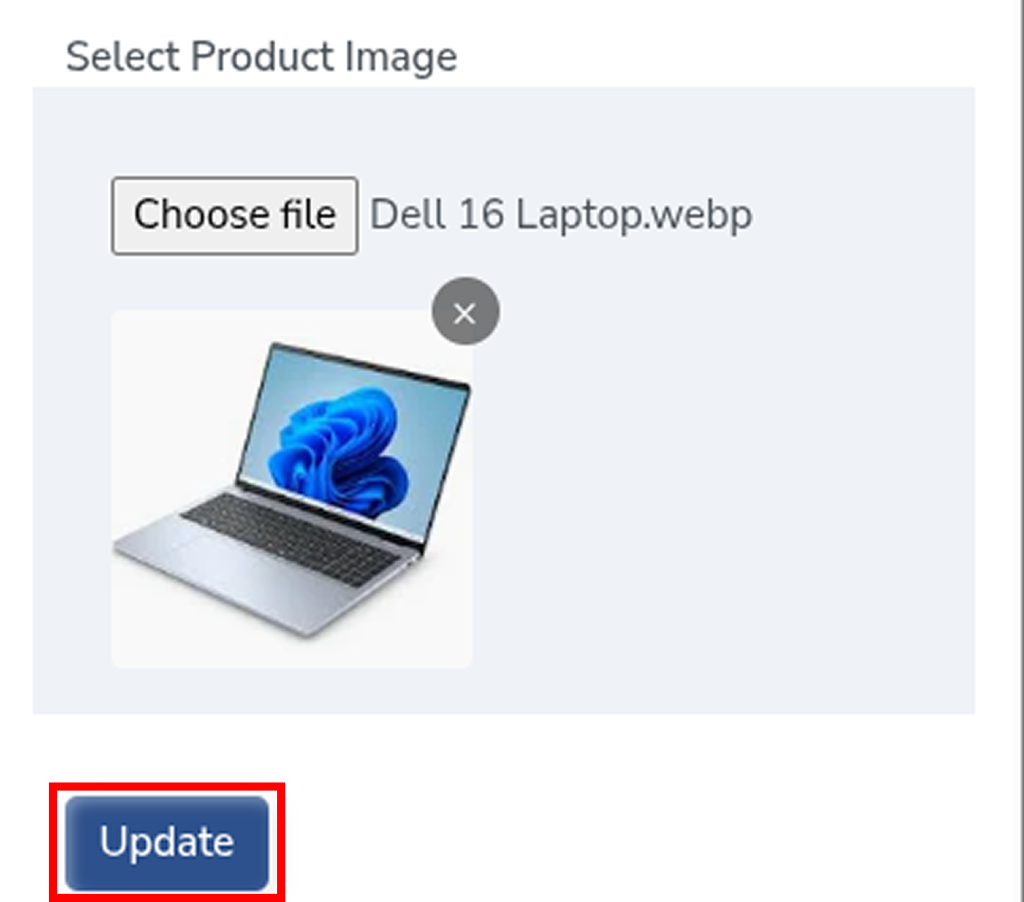
Step 8: Save the Changes
After updating all necessary fields, click the Update button to save the changes. The membership package will be updated successfully.