Adding a repurchase category helps you organize products and streamline the repurchase process within your system. Follow the steps below to create a new category:
Step 1: Access the Package Section
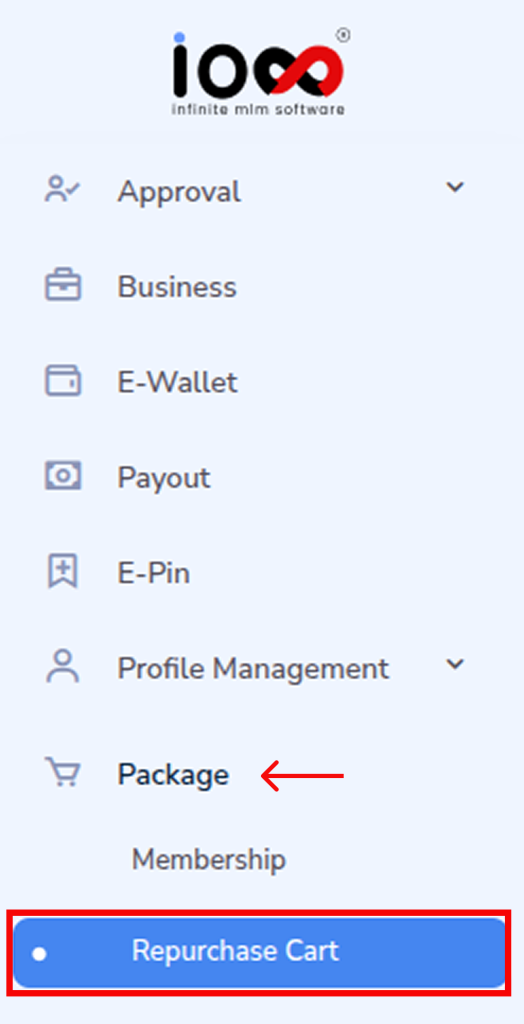
From the main menu bar, navigate to the “Package” section. This is where all product and cart-related configurations are managed.
Step 2: Open Repurchase Cart
In the dropdown menu, click on “Repurchase Cart.” This will take you to the dedicated interface where repurchase settings and categories are handled.
Step 3: Select “Manage Category”
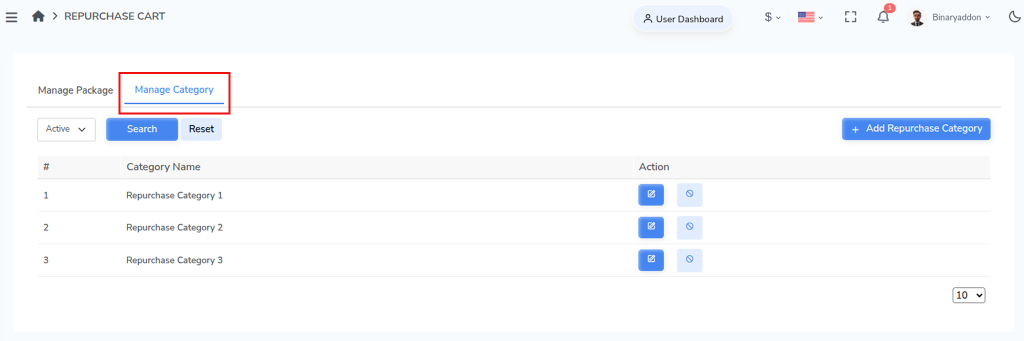
Within the Repurchase Cart window, locate the section labeled “Manage Category.”
Step 4: Click “Add Repurchase Category”
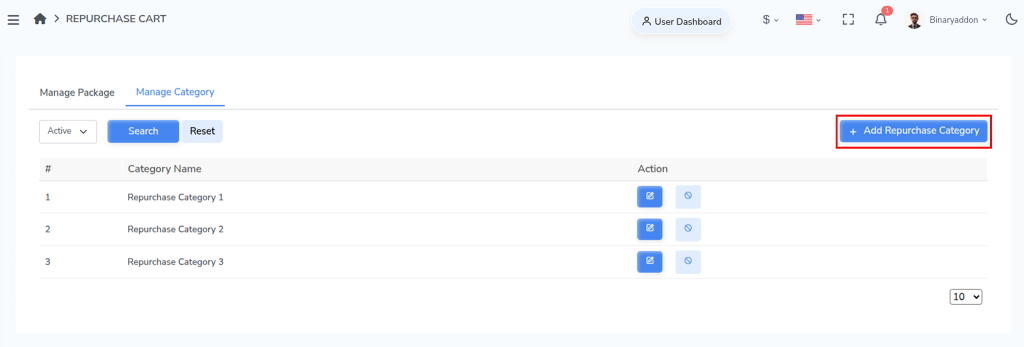
Locate the “Add Repurchase Category” button. This option allows you to create a new category for organizing repurchase items.
Step 5: Enter Category Details
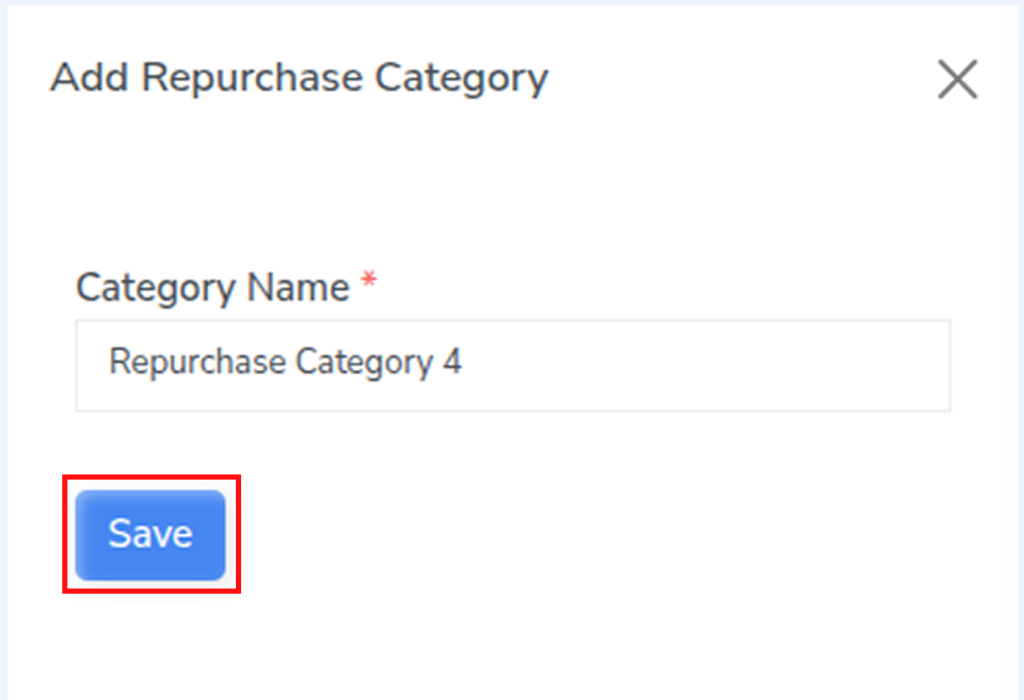
A form will appear where you need to provide the “Category Name”. Make sure to use a clear and relevant name that reflects the type of products it will contain.
Step 6: Save the Category
After entering the required details, click on the “Save” button to finalize the process.