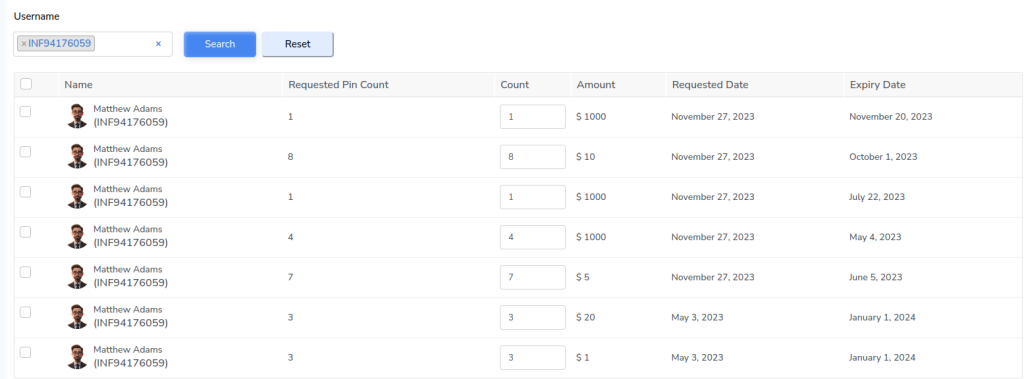
The Pending Request tab shows all E-Pin requests submitted by members. These requests must be approved by an administrator before the pins become usable.
Step 1: From the left navigation panel, click E-Pin.
Step 2: Open the Pending Request tab. You can now view all user requests waiting for approval.
Columns in Pending Request
Each row represents a request made by a user.
- Name – Member who requested E-Pins
- Requested Pin Count – Number of pins requested by the user
- Count – Editable field to confirm how many pins will be issued
- Amount – Value of each pin
- Requested Date – Date when the request was created
- Expiry Date – Expiry date that will apply to the issued pins
Step 3: You can select Username or Usernames to filter requests.
Step 4: Click Search to display the pending E-Pin requests sent by that/those particular user/users.