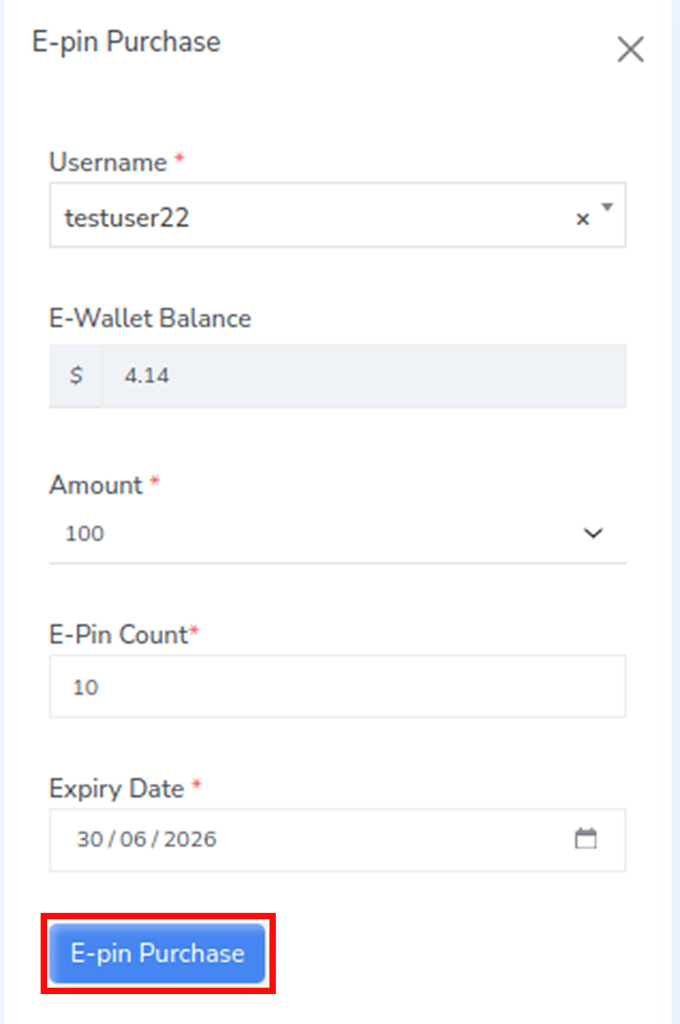
The E-Pin Purchase feature allows administrators to generate and purchase E-Pins directly for a user account. These purchased E-Pins can be used for registrations, package upgrades, product purchases, or other transactions within the MLM system. During the purchase process, the admin can define the pin value, quantity, and expiry date before confirming the purchase.
Steps to Do an E-Pin Purchase
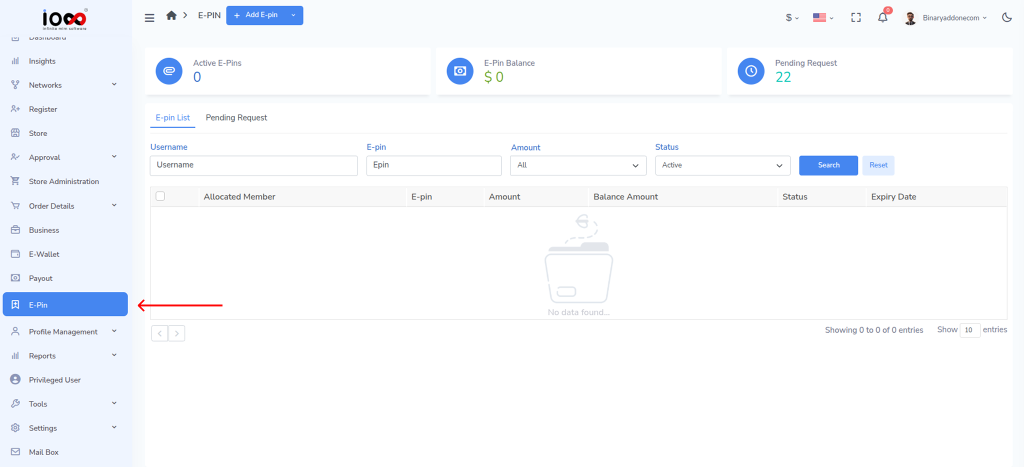
Step 1: To access the E-Pin Dashboard, click E-Pin from the left panel.
Step 2: Navigate to the top-left of the screen and click the dropdown next to the Add E-Pin button.
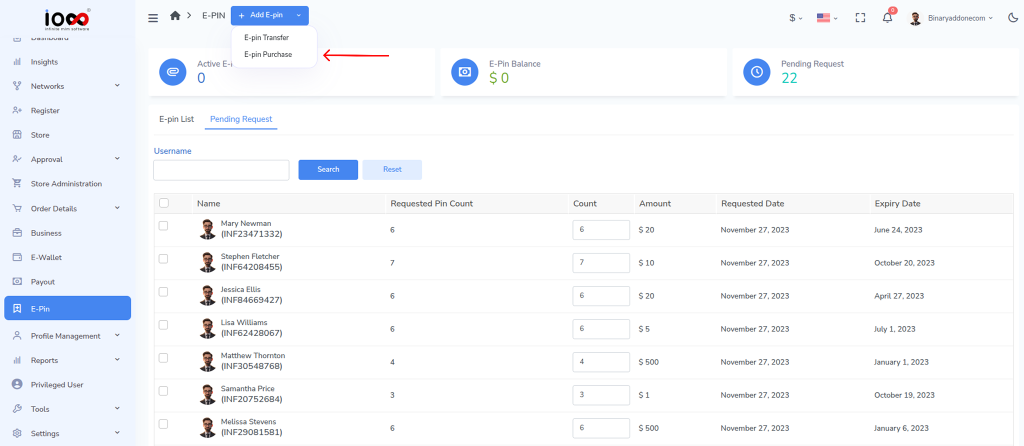
Step 3: Select E-Pin Purchase. The purchase window will open.
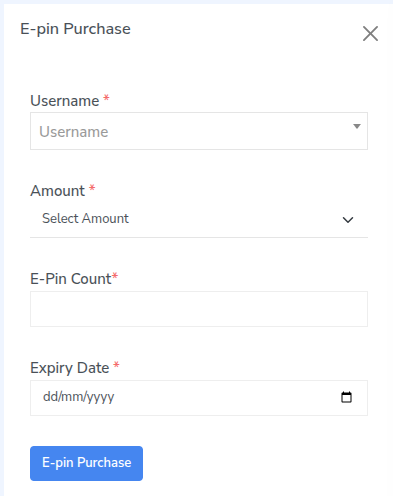
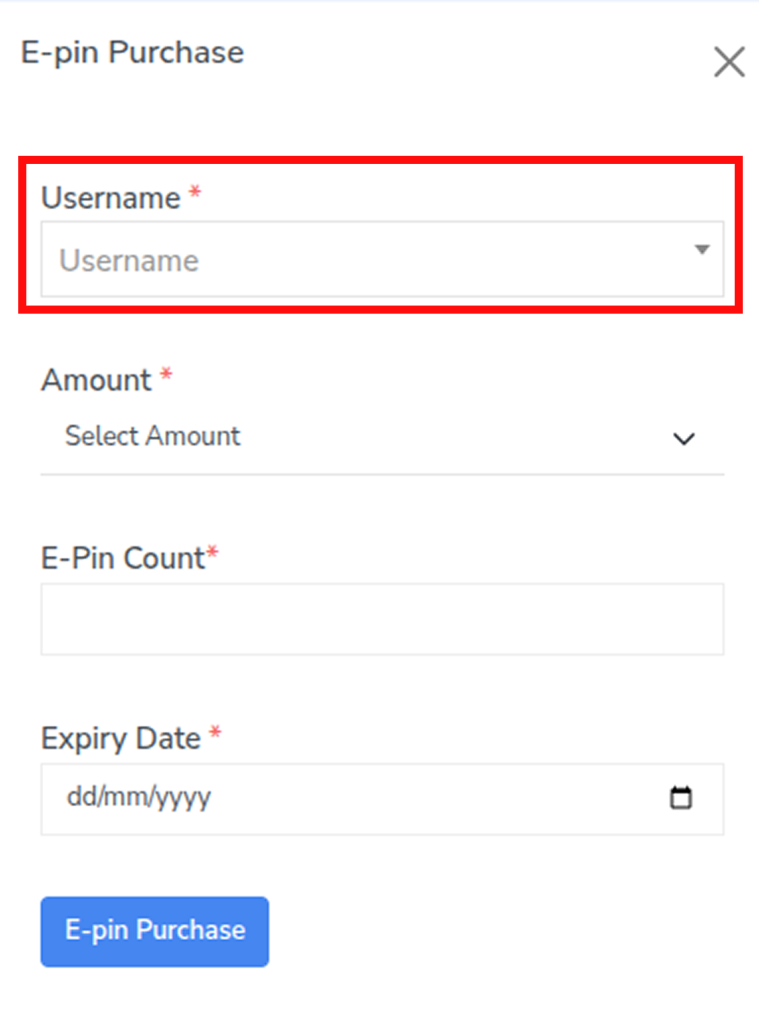
Step 4: In the Username field, select the user who is purchasing the E-Pins.
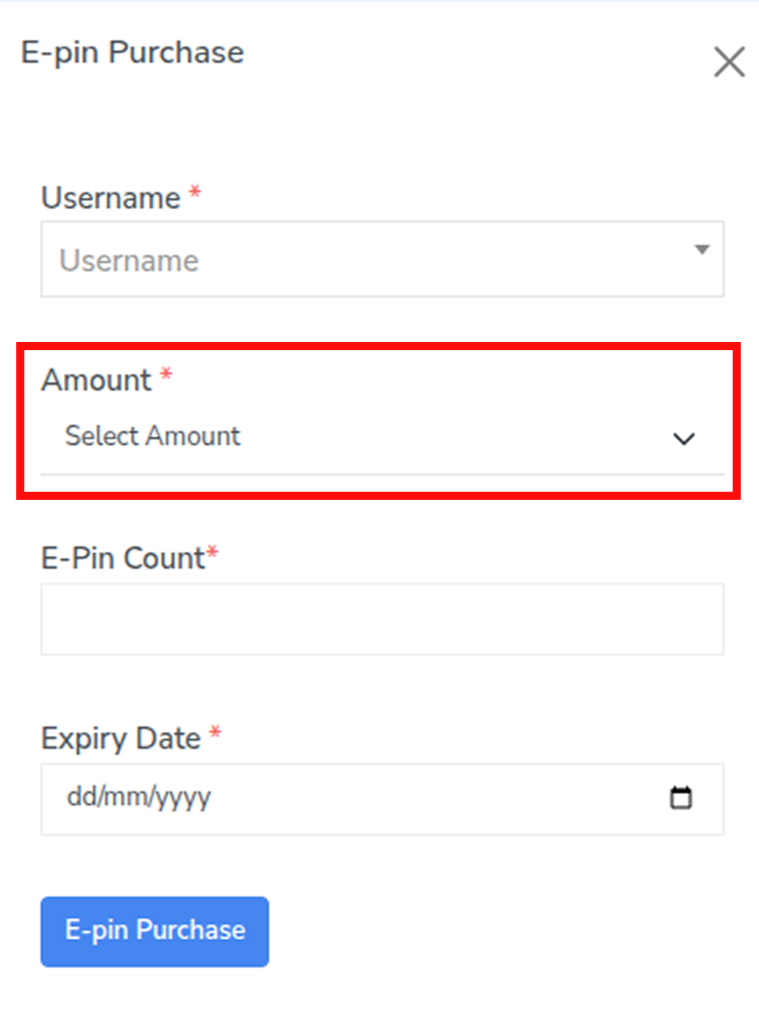
Step 5: In the Amount field, select the E-Pin value.
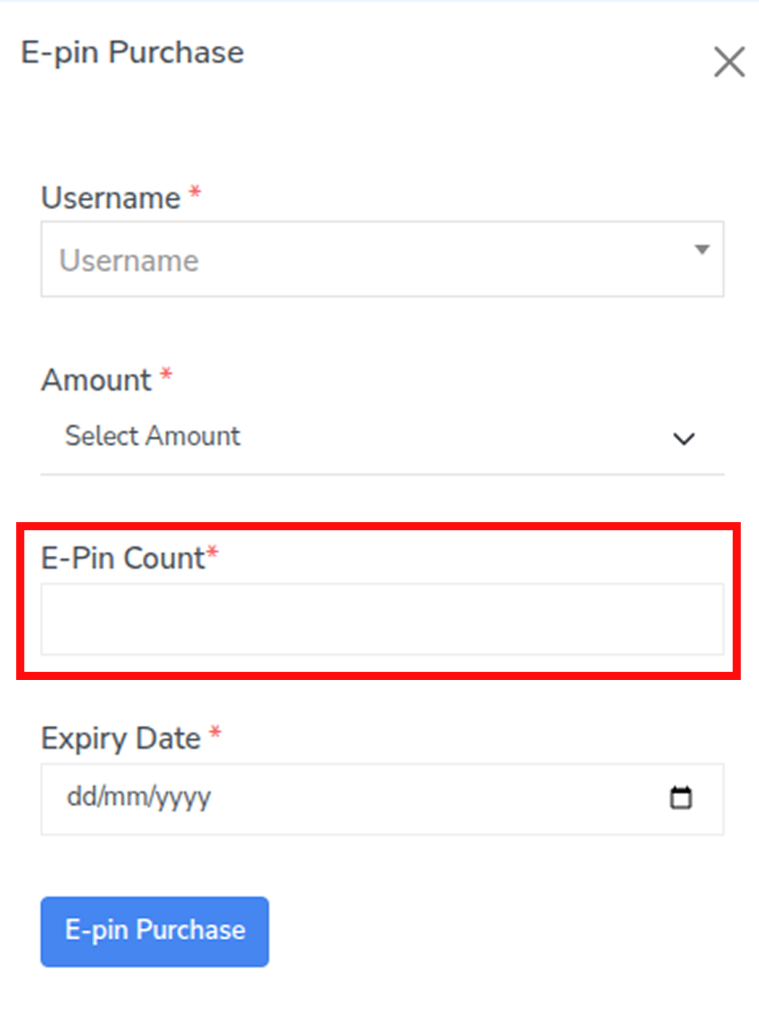
Step 6: Enter the required number in E-Pin Count.
Step 7: Select the Expiry Date for the E-Pins.
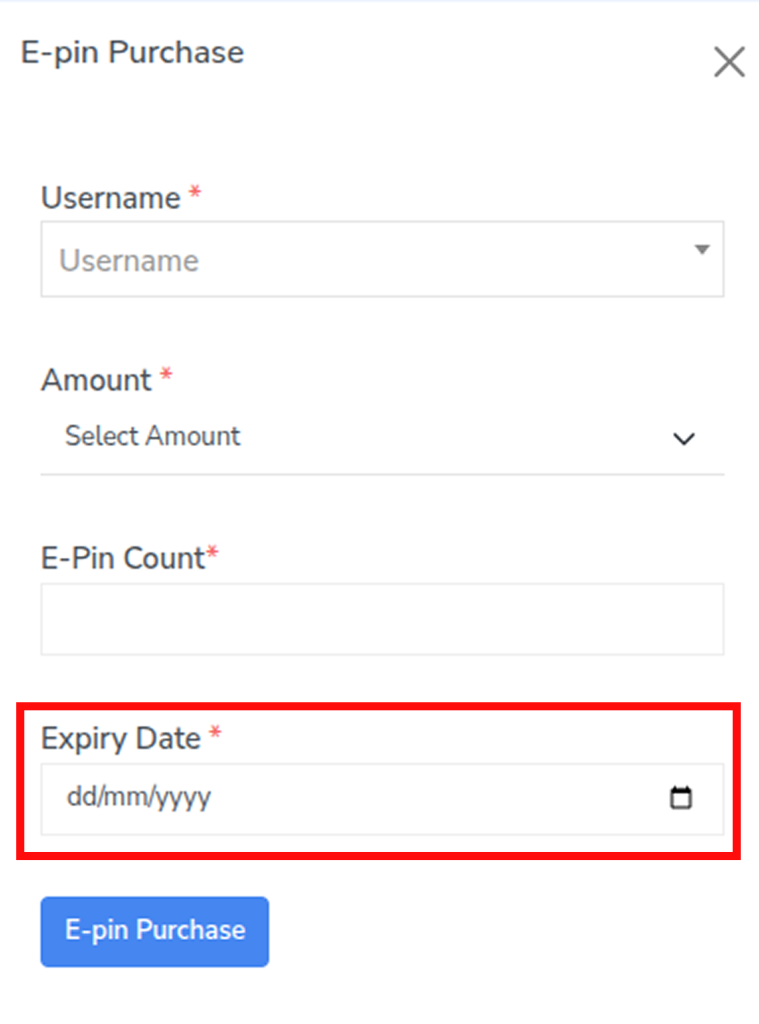
Step 8: Click E-Pin Purchase to complete the purchase successfully.