
The Add E-Pin feature allows administrators to manually generate and assign new E-Pins to members. These E-Pins can later be used for member registration, product purchases, upgrades, or other transactions within the MLM system. While creating a new E-Pin, the admin can define the pin value, quantity, assigned user, and expiry period.
Steps to Add a New E-Pin
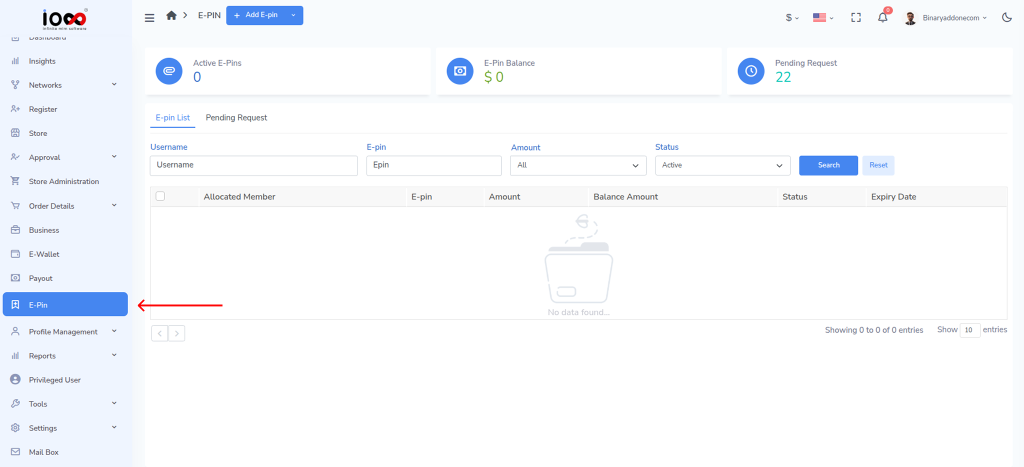
Step 1: From the left navigation panel, click E-Pin to open the E-Pin Dashboard.
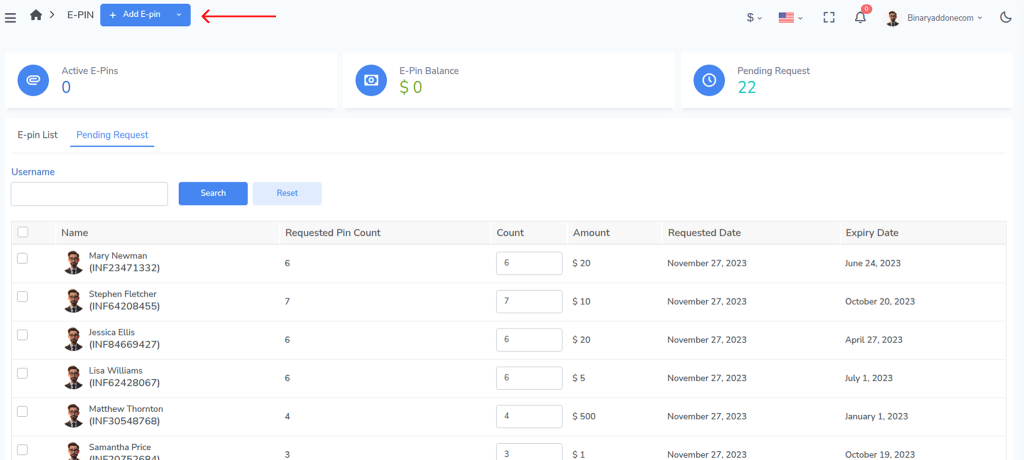
Step 2: Navigate to the top left of the screen and click on the Add E-pin button.
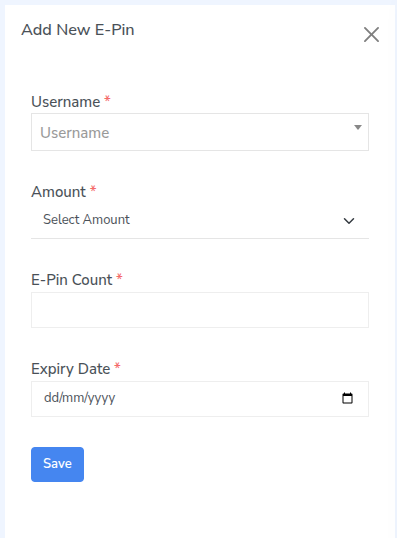
Step 3: An Add New E-Pin window will open.
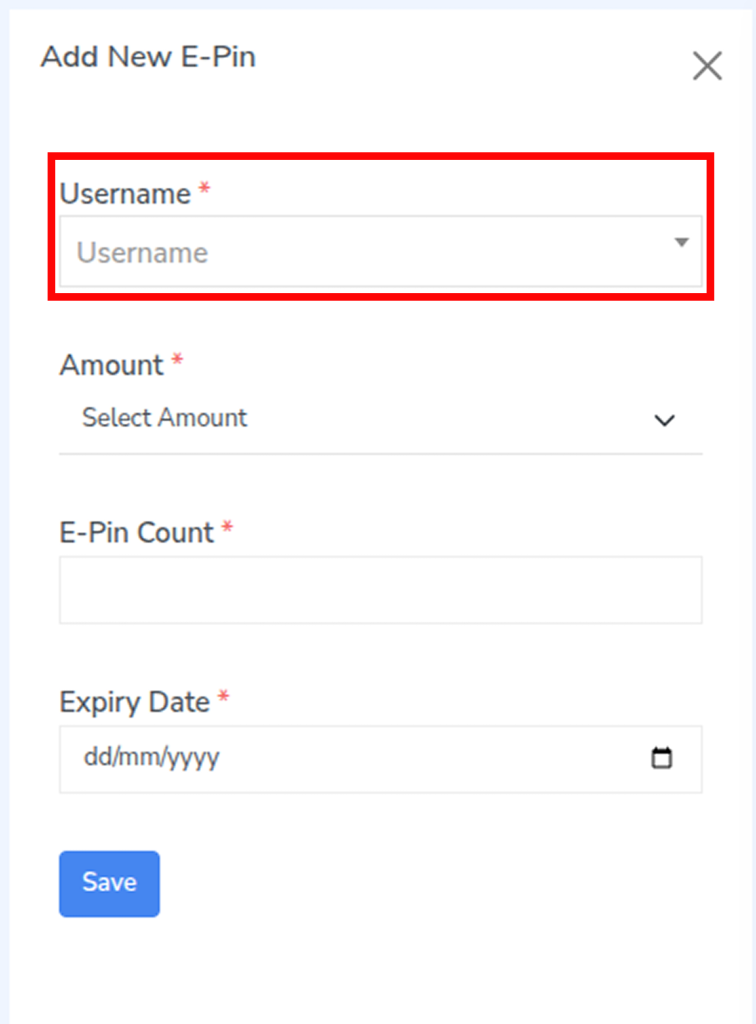
Step 4: Choose the user from the dropdown.
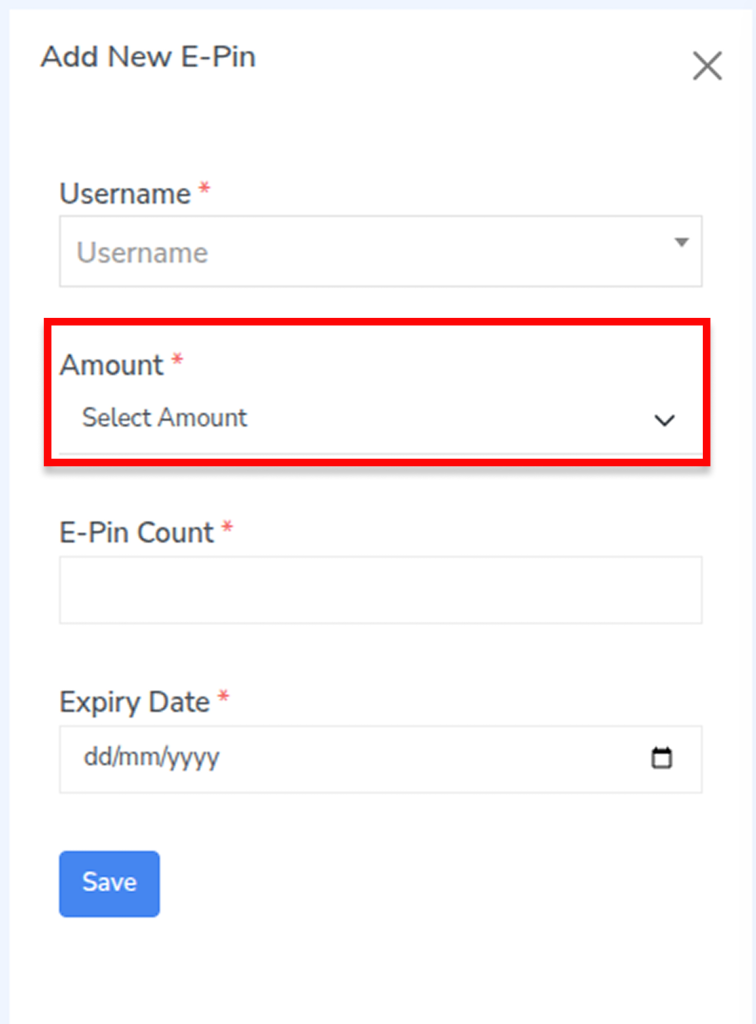
Step 5: Choose the E-Pin value from the Amount dropdown.
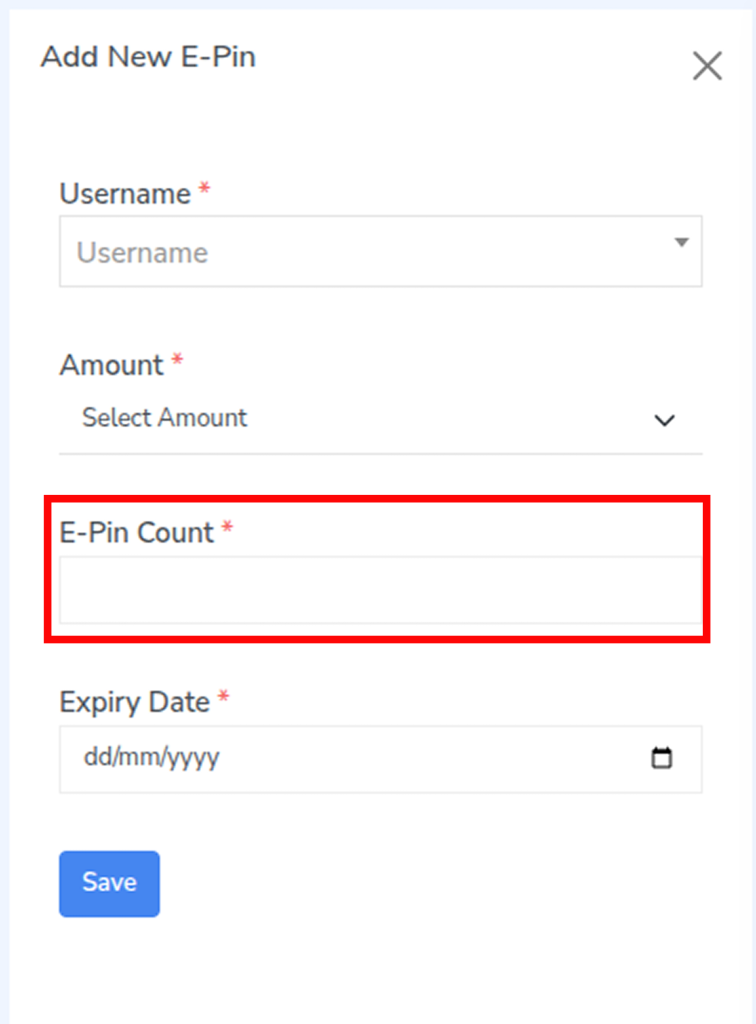
Step 6: Enter the E-Pin Count i.e how many E-Pins you want to generate.
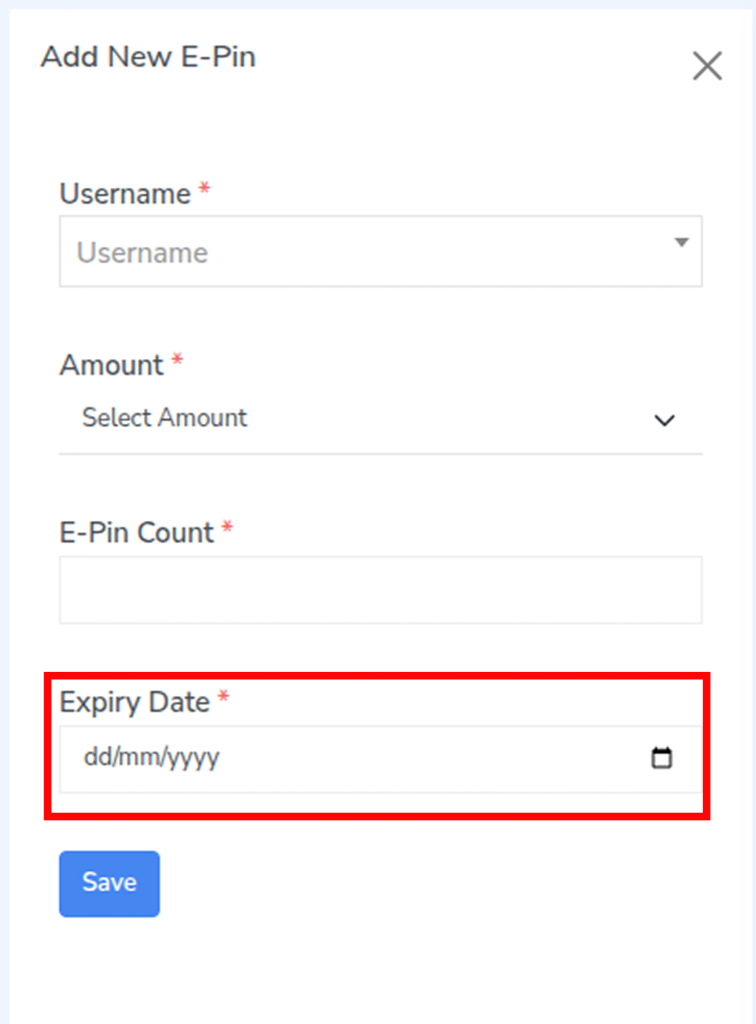
Step 7: Select the Expiry Date.
Step 8: Click Save to generate the E-Pins.
Important Notes
- All fields marked with (*) are mandatory and must be completed before saving.
- Ensure the correct user, pin amount, and count are selected before generating the E-Pins.
- Generated E-Pins will be available for use immediately after creation, depending on system configuration.