
The E-Pin List tab shows all generated and allocated E-Pins in the system. In order to view the E-pin list use the following steps:
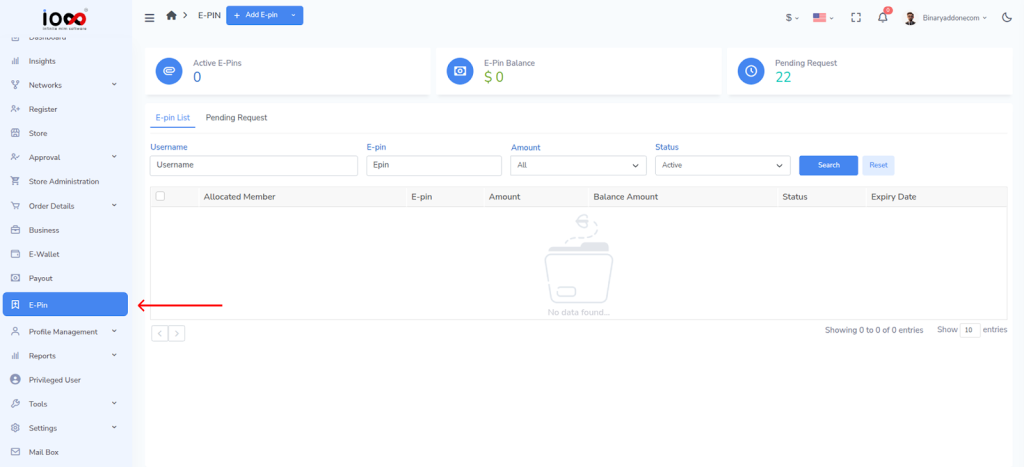
Step 1: From the left navigation panel, click E-Pin.
Step 2: Open the E-Pin List tab.
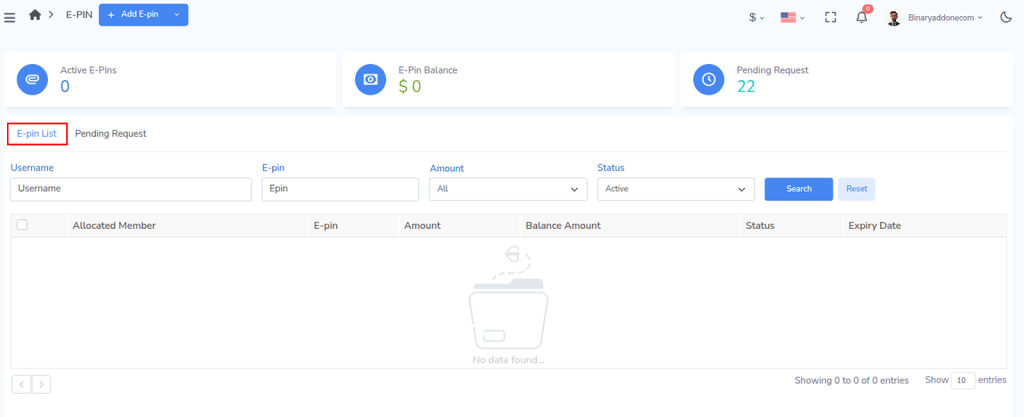
Step 3: Use the filters such as

- Username – Filter by allocated member
- E-pin – Search by a specific pin code
- Amount – Filter by pin value
- Status – Filter by Active / other statuses
Step 4: Click Search to apply filters and Reset to clear them.
Columns in E-Pin List
Each row represents an E-Pin entry;
- Allocated Member – The user to whom the E-Pin is assigned
- E-pin – The unique pin code
- Amount – Value of the E-Pin
- Balance Amount – Remaining usable value (if partial usage is supported)
- Status – Current state of the pin (for example: Active)
- Expiry Date – Date after which the pin cannot be used