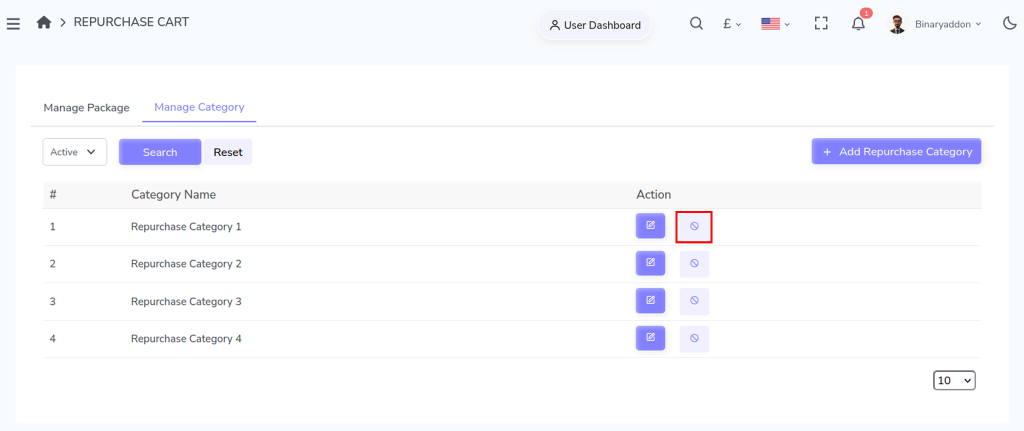
Deactivating a repurchase category allows you to temporarily disable it without permanently removing it from the system. Follow the steps below to deactivate an existing repurchase category.
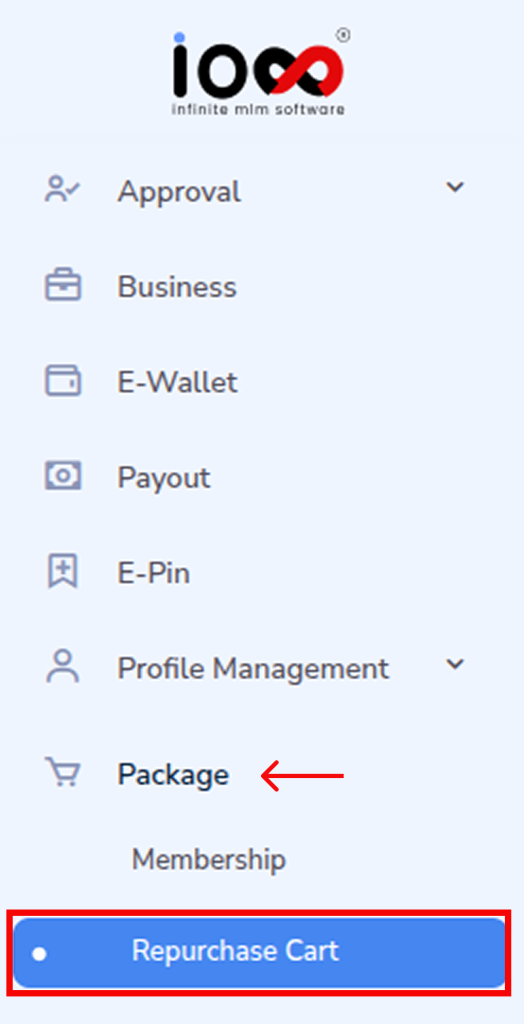
Step 1: Navigate to the Package Section
From the main menu, go to the Package section. This area contains all product-related settings and configurations within the system.
Step 2: Open the Repurchase Cart
Under the Package menu, select Repurchase Cart from the dropdown options. This will open the page where repurchase products and categories are managed.
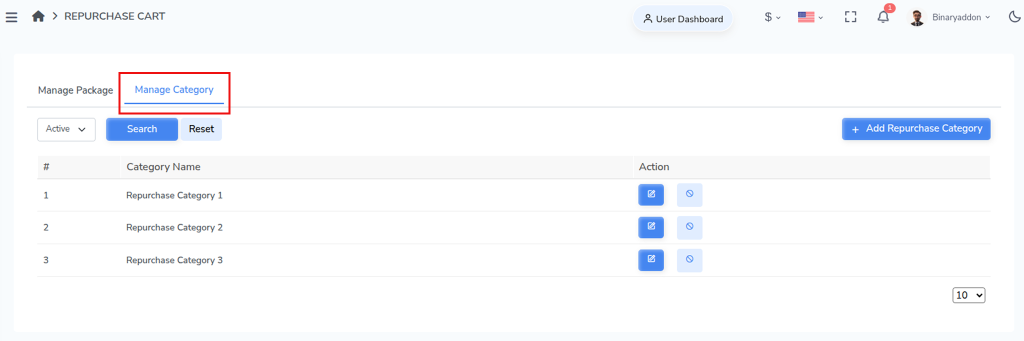
Step 3: Access the Manage Category Section
Within the Repurchase Cart page, locate the Manage Category section. Here, you can view all existing repurchase categories available in the system.
Step 4: Click the Delete Button
Locate the category you want to deactivate and click the Delete button under the Action column. This option is used to deactivate the selected repurchase category.