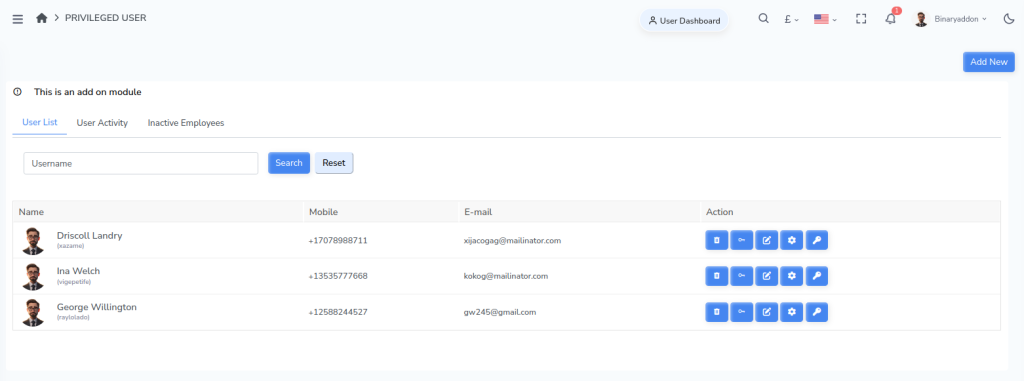
Adding a privileged user allows administrators to grant special access rights and permissions to selected users within the system. Follow the steps below to create a new privileged user account.
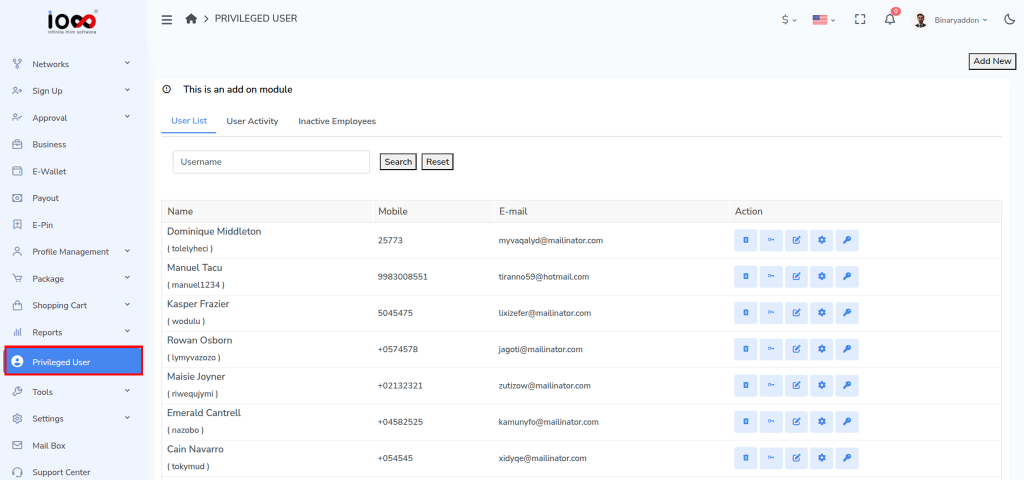
Step 1: Open the Privileged User Section
From the admin panel’s left-side menu, click on Privileged User to access the privileged user management page.
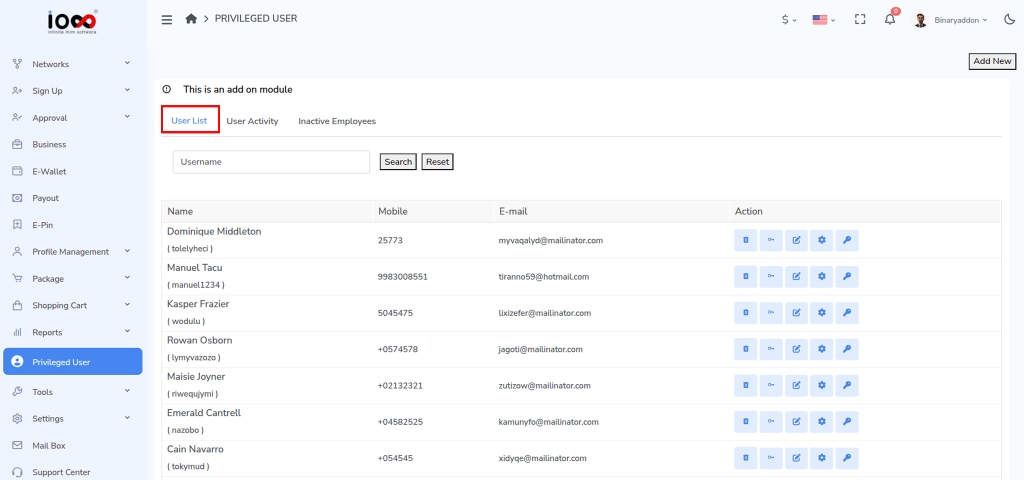
Step 2: Navigate to the User List Tab
On the page that opens, select the User List tab. This section displays all existing privileged users.
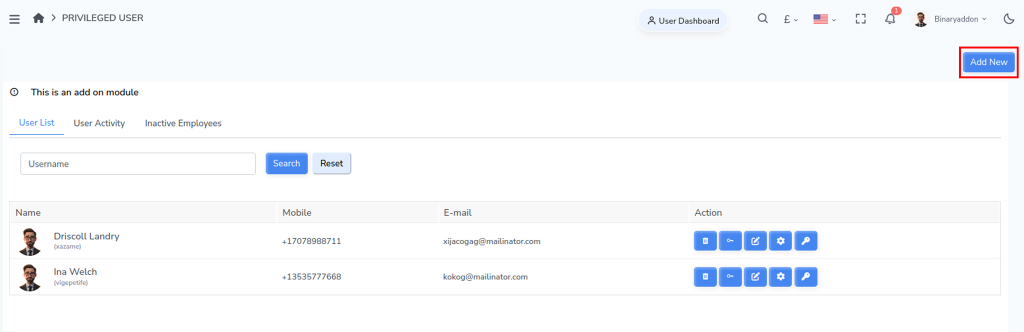
Step 3: Click the Add New Button
In the top-right corner of the screen, click the Add New button. This will open the form for creating a new privileged user.
Step 4: Enter User Details
Fill in the required information in the provided fields:
- User Name* – Enter a unique username for the privileged user.
- First Name* – Enter the user’s first name.
- Last Name – Enter the user’s last name (optional, if applicable).
- E-mail* – Enter a valid email address.
- Mobile Number* – Enter the user’s contact number.
- Password* – Create a password for the account.
- Confirm Password* – Re-enter the password for verification.
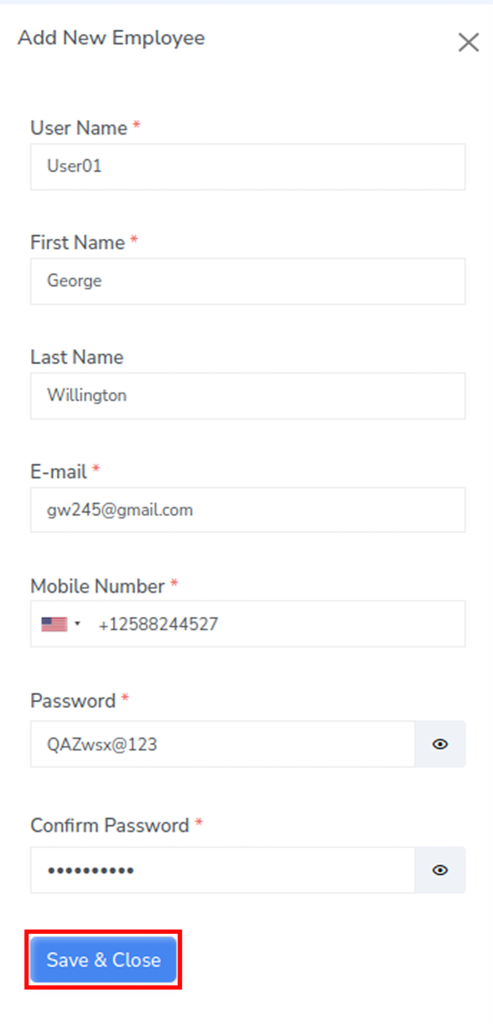
Step 5: Save the User
After entering all the required details, click the Save and Close button.
Step 6: Verify the User Addition
Once the information is saved successfully, the new privileged user will be added to the User List and will be available for further permission and access management.