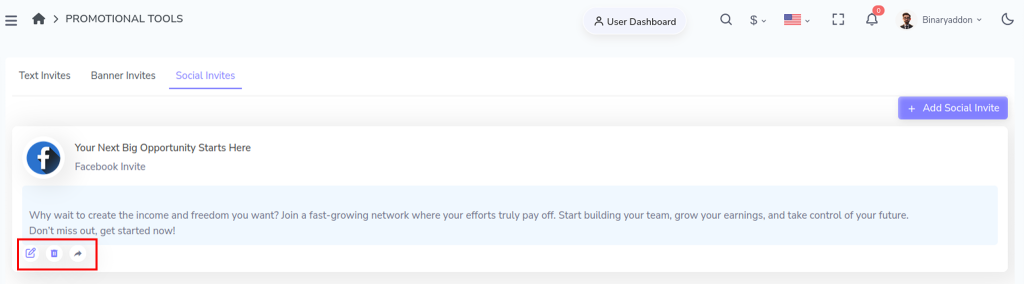
Social invites make it easier to promote your MLM business across platforms like Facebook, WhatsApp, and other social channels. Instead of manually typing messages every time, you can create ready-to-use invites with structured content, making your outreach faster, more consistent, and more professional. This feature helps you engage prospects effectively and scale your communication with minimal effort.
Step 1: Access Promotional Tools
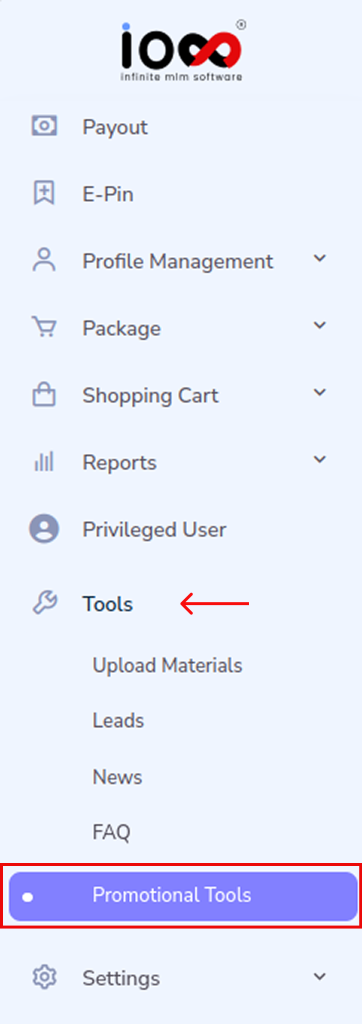
Start by navigating to the main dashboard. Go to Tools and select Promotional Tools from the dropdown menu. This section contains all the resources needed to create and manage marketing content for your network.
Step 2: Open the Social Invites Module
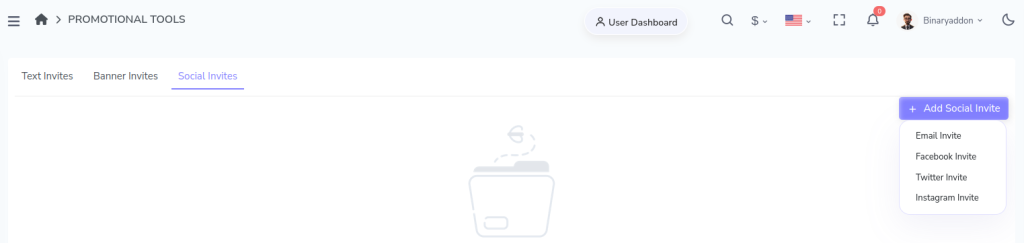
Within the Promotional Tools window, locate and click on Social Invites. This is where you can create, store, and manage invitation messages used for outreach and recruitment.

Step 3: Add a New Social Invite
Click on the “Add Social Invite” button. A list of type of invites will appear and choose the one you need to do.
Step 4: Enter the Subject Line
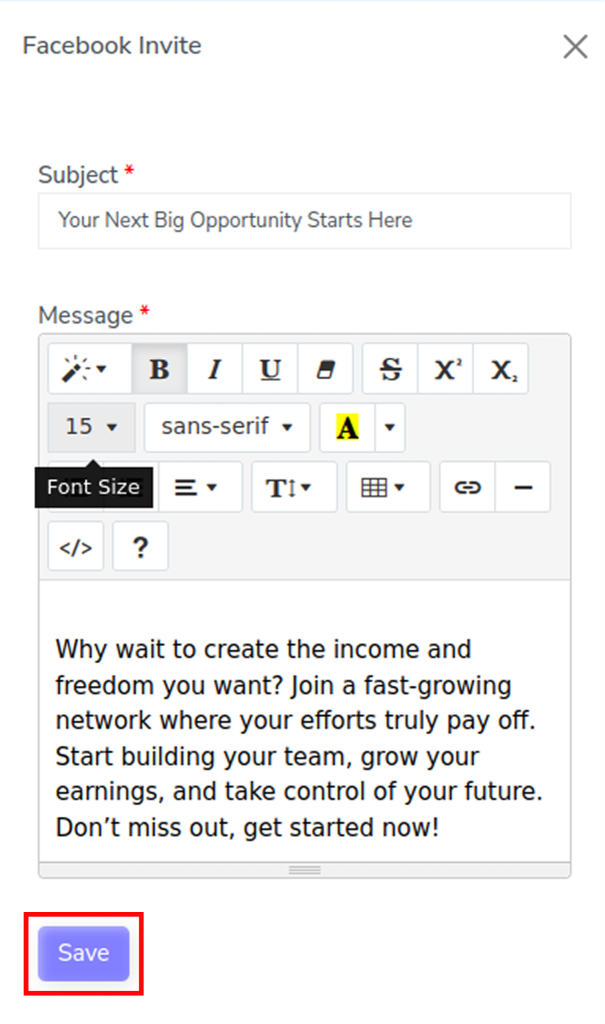
In the pop-up, fill in the Subject field. This acts as a headline for your invite, so keep it clear, engaging, and relevant to attract attention.
Step 5: Create and Format Your Message
Move to the Message section and type your invitation content. You can enhance your message using the built-in editor tools, such as:
- Font styles and sizes to improve readability
- Text colors to highlight key points
- Alignment options for better structure
- Basic formatting like bold, italics, and lists
This helps you create a more professional and visually appealing invite.
Step 6: Save the Social Invite
Once your message is ready, click on the Save button. Your social invite will be stored and added to the list of available invites.
Step 7: View and Manage Saved Invites
After saving, your invite will appear in the Text Invites list. From here, you can:
- Edit the invite to update content or formatting
- Delete invites that are no longer needed
- Share invites directly using the share button across social platforms