
Disabling a privileged user allows administrators to restrict access for users with elevated permissions. This helps maintain system security and ensures that only authorized users can access privileged functions.
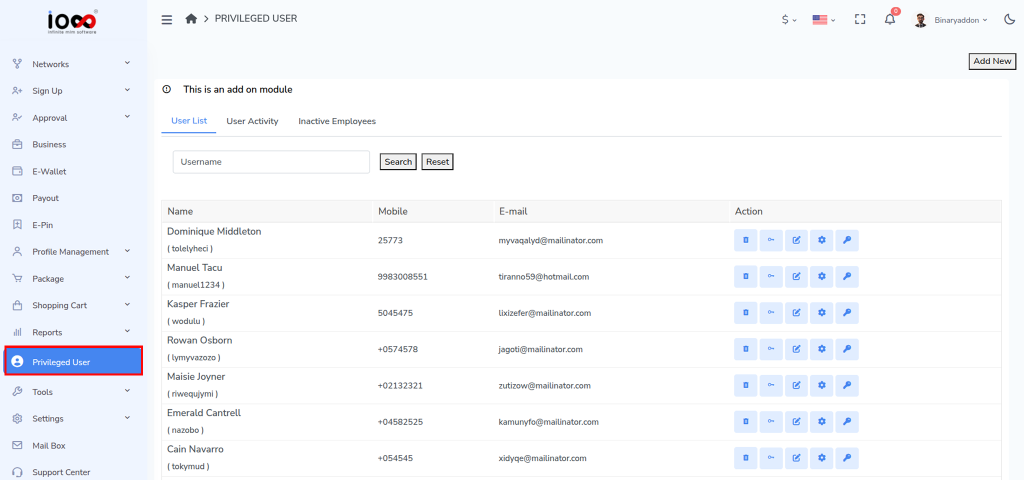
Step 1: Open the Privileged User Section
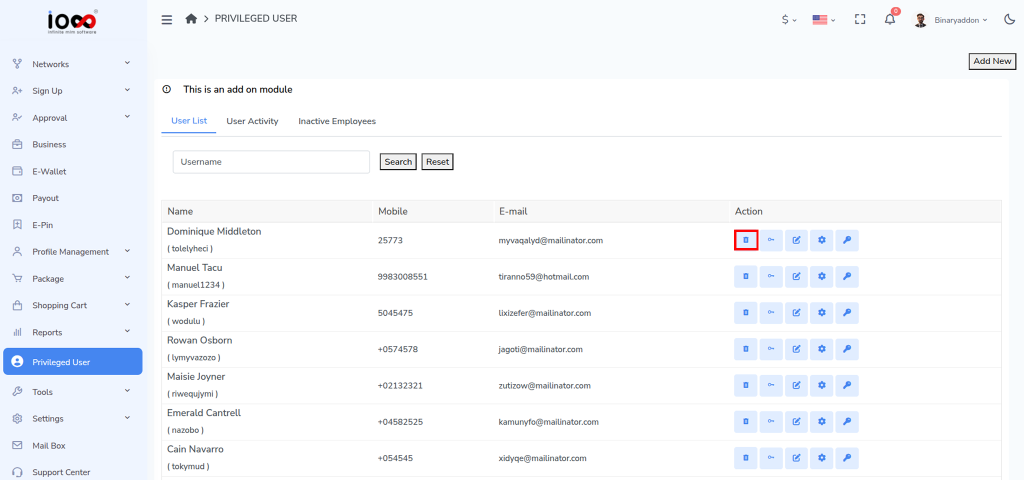
From the admin panel’s left-side menu, click on Privileged User to access the privileged user management page.
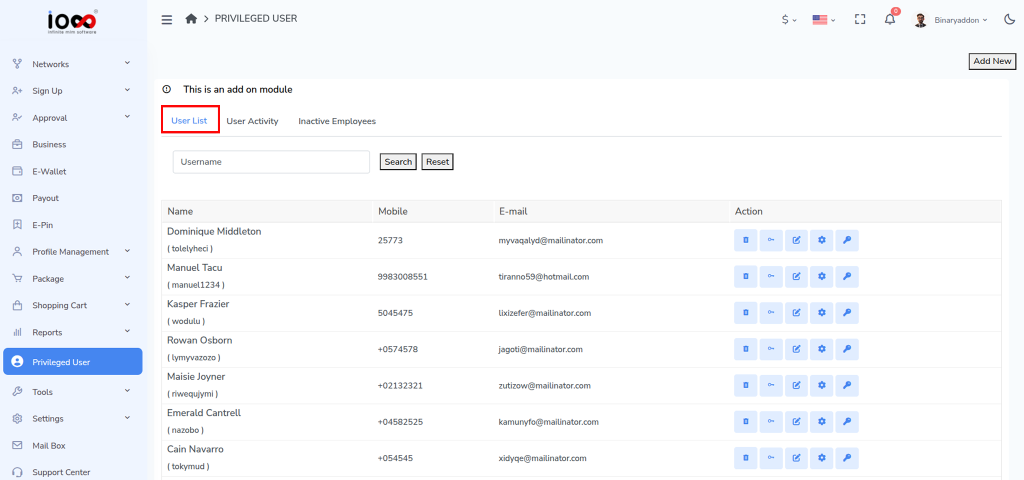
Step 2: Navigate to the User List Tab
On the page that opens, select the User List tab. This section displays all privileged users currently available in the system.
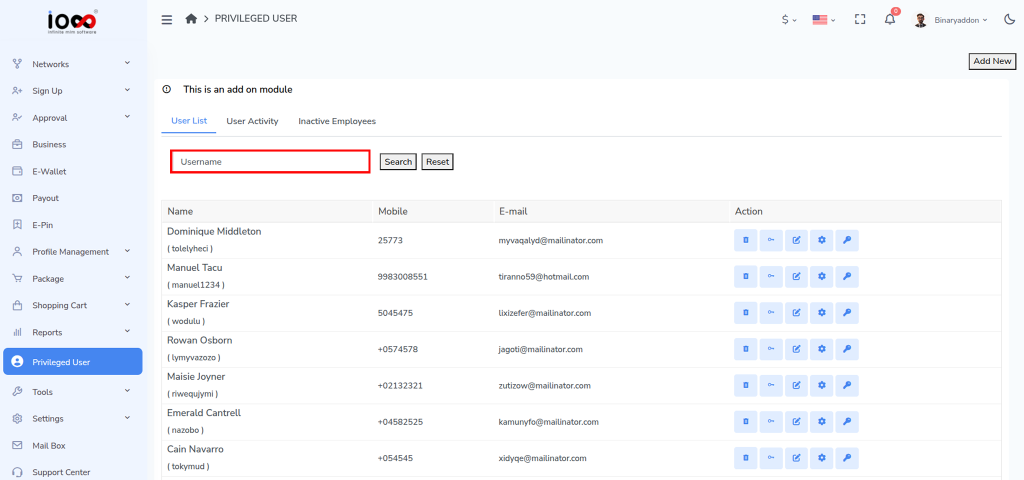
Step 3: Search for the User (Optional)
In the Username field, enter or select a specific username to filter the list and quickly locate the desired user. This step is optional.
Step 4: Locate the User
Review the displayed list and find the privileged user you want to disable.
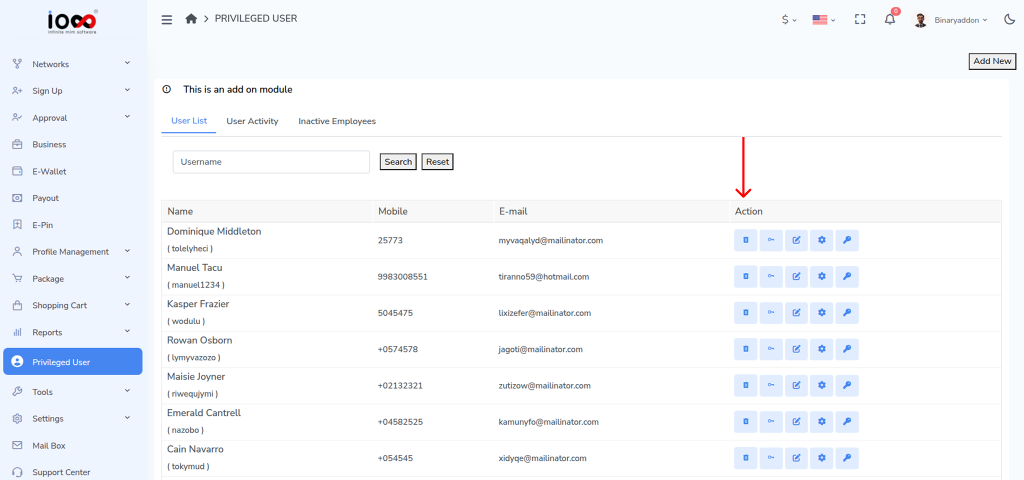
Step 5: Click the Disable Icon
Under the Action column, click the Disable icon corresponding to the selected user.
Step 6: Confirm the Action
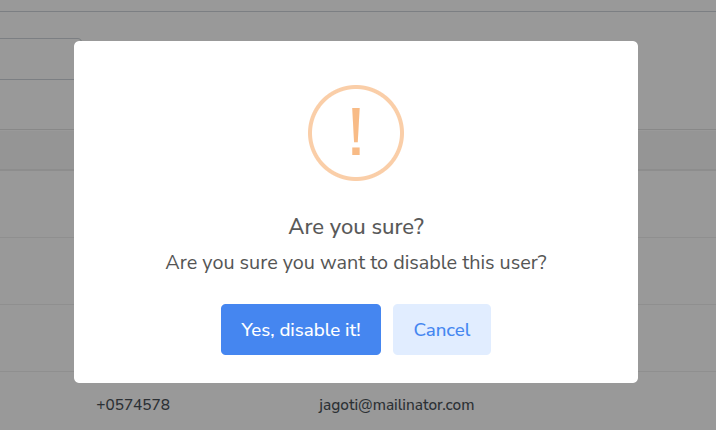
A confirmation pop-up window will appear. Click Yes to proceed with disabling the user.
Step 7: Verify the User Status
Once confirmed, the privileged user will be disabled and will no longer have access to privileged functions until the account is re-enabled.