
Step 1: Go to the Tools Section
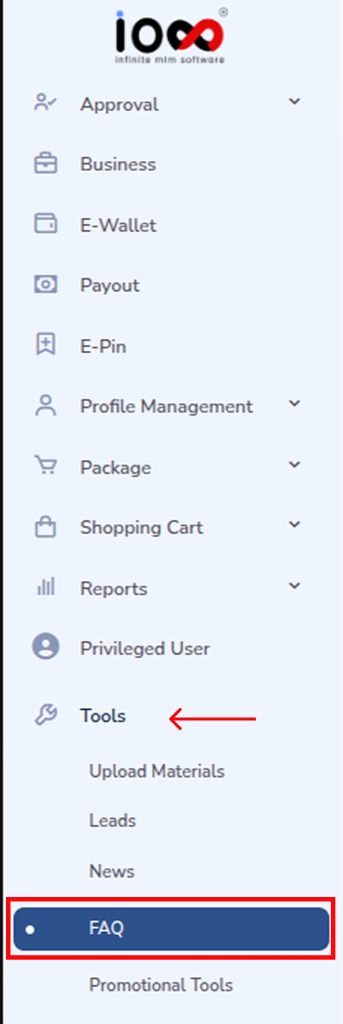
Log in to your MLM software dashboard and navigate to the left-side menu bar. Click on the Tools section to expand the options.
Step 2: Select FAQ
From the dropdown menu under Tools, click on FAQ. This will open the FAQ management page.
Step 3: Enter FAQ Details
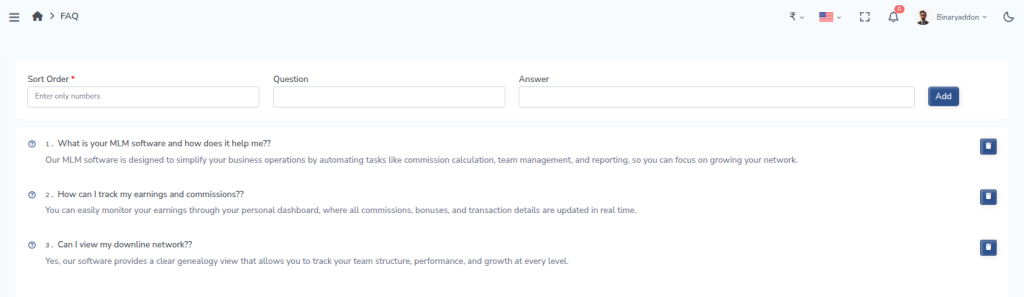
In the FAQ section, you will see fields to add a new FAQ. Fill in the following:
- Sort Order: Enter a number to decide the position of the FAQ (e.g., 1, 2, 3).
- Question: Type the question you want to display to users.
- Answer: Provide a clear and helpful answer to the question.
Step 4: Click on “Add”
After entering all the required details, click the “Add” button to save the FAQ.

Step 5: View Added FAQs
Once added, the FAQ will be displayed in the list below, arranged according to the sort order you provided.
Check how the FAQ appears in the user panel to ensure the question and answer are clear and properly formatted.
Step 6: Delete FAQs (If Needed)
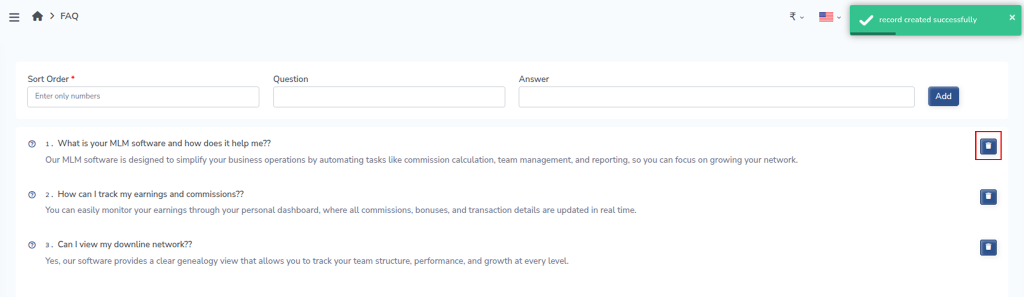
If you need to make changes, you can easily delete the existing question and add a new one with updated details. This helps keep your FAQ section accurate and up to date.
Keeping your FAQ section updated helps users quickly find answers and reduces support requests.