
Adding news updates in your MLM software helps you keep your network informed about important announcements, promotions, and updates. Follow the steps below to add news easily:
Step 1: Navigate to the Tools Section
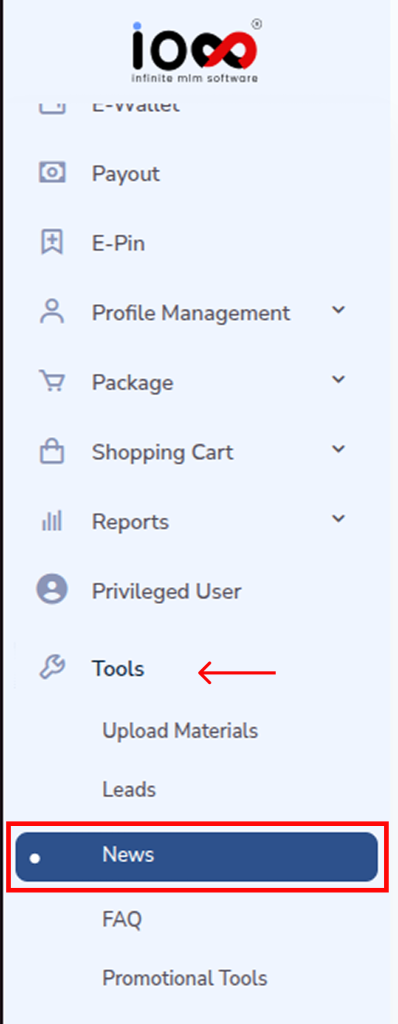
Log in to your MLM software dashboard and locate the left-side menu bar. From there, go to the Tools section. Click on it to expand the dropdown options.
Step 2: Select the News Option
From the dropdown menu under Tools, click on News. This will take you to the News management page where all existing news updates are displayed.
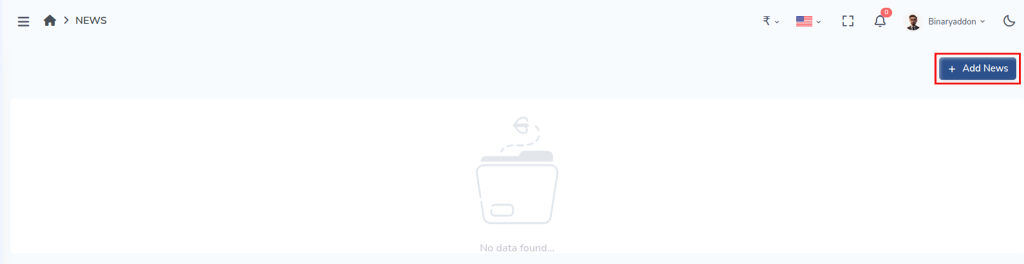
Step 3: Click on “Add News”
On the News page, you will find an “Add News” button. Click on this button to create a new news update.
Step 4: Enter News Details
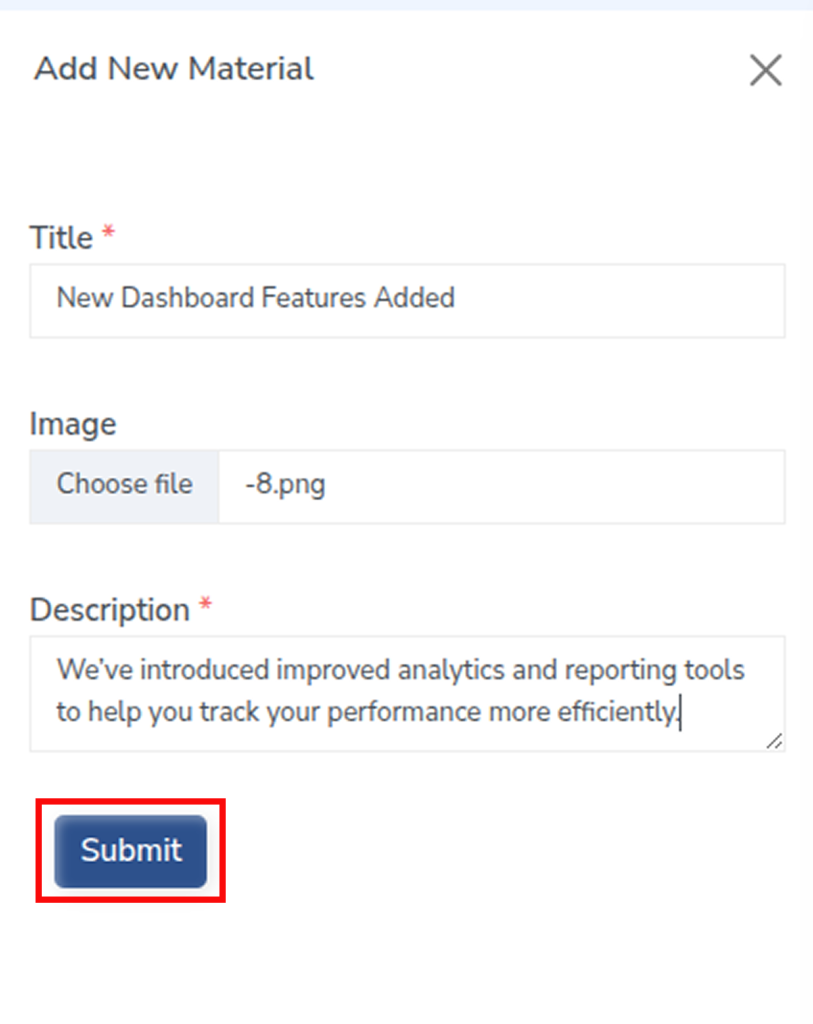
A pop-up window or form will appear. Fill in the required details:
- Title: Enter a clear and relevant headline for your news.
- Image: Upload or choose an image from your files (optional but recommended for better visibility).
- Description: Add a detailed explanation or content of the news.
Step 5: Submit the News
After entering all the necessary information, click on the “Submit” button to publish the news.
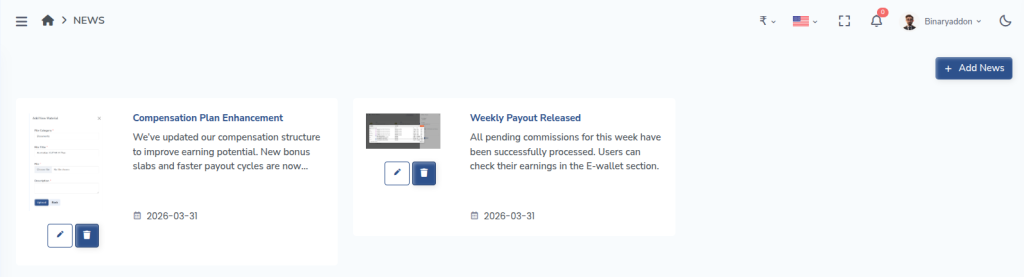
The newly added news will be displayed in the News section, where users can view all the latest updates and announcements.
By following these steps, you can easily add and manage news updates, ensuring your users stay informed and engaged.